
Add Signals to an Existing Idea
Create a New Idea from Signals
Ideas & Signals
An Idea is something you might build, a problem to solve, an opportunity, or a common request.
A Signal is one piece of evidence. A signal could be one customer's feedback, one data point, or one form submission.
Ideas are organized by product, and can be accessed through the Ideas tab in the left navigation menu. If you have access to more than one product, the All Products view shows ideas across all products. The Ideas page displays a table-style view of every idea in the product.
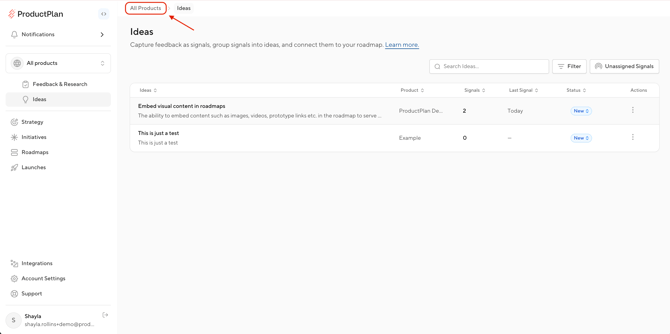
Signals are the evidence behind an idea. Signals can be grouped onto an idea to show how much support it has and where it came from. A signal lives on one idea at a time. As feedback comes in as signals, you can triage it to decide which idea the signal should be grouped with so the idea carries the evidence you use to decide what to build.
Adding Ideas & Signals
There are three primary ways Editors can add Ideas and Signals:
Add an Idea Manually
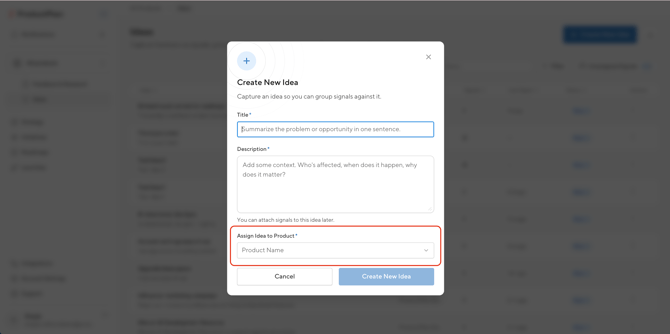
- On the Ideas page, click the '+ Create New Idea' button.
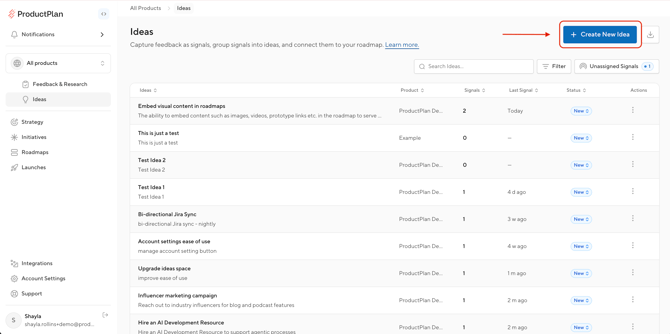
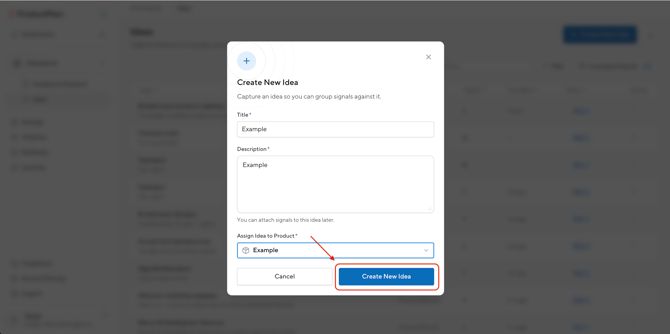
- Enter a title and description. Both are required.
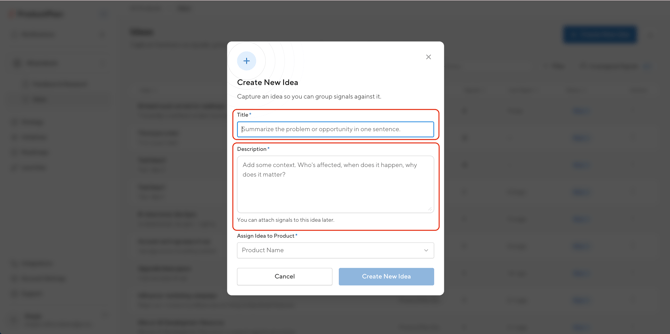
- If you are creating the idea from within a product, the product will be populated for you. If you are in the All Products view, select the product this idea is for.
- Click 'Create Idea'. The idea appears in the table, ready for a status and signals.
Add a Signal Manually
- From the Ideas page, open the Unassigned Signals drawer and select '+ New Signal'.
Or, open an idea and select '+ Add Signal Manually' to add the signal directly to it.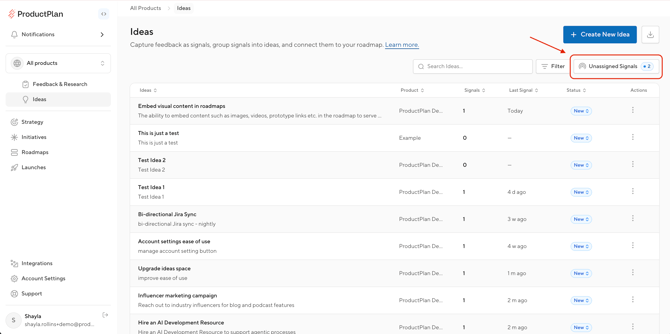
- Enter a title and description. Both are required.
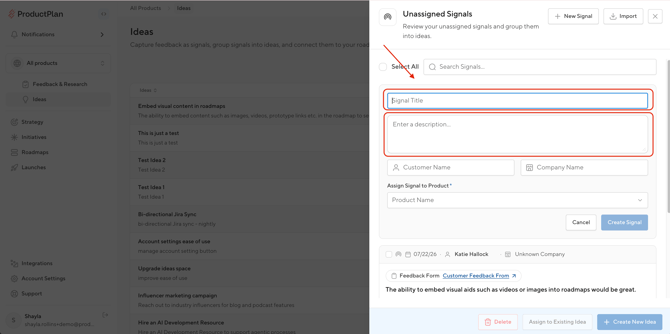
- Optionally, add a customer and a company.
- Customer is the individual the evidence is tied to.
- Company is the business or account the evidence is tied to.
- Adding a customer or company will work like a tag for your Signal. You can start typing to reuse an existing customer/company, or add a new one.
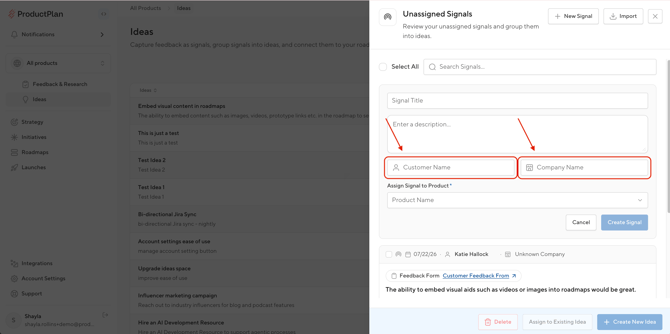
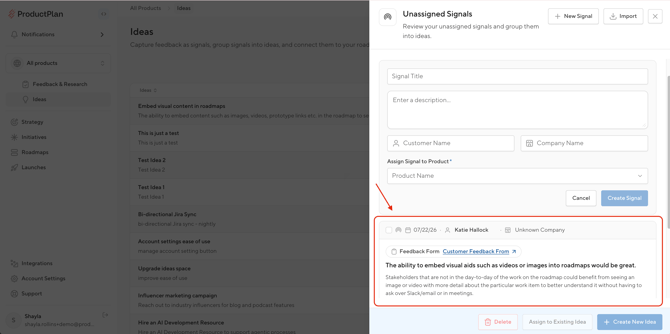
- Optionally, select an existing idea to attach the signal to.
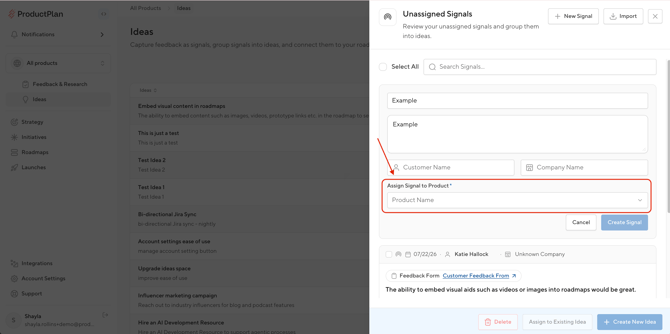
- If you are creating the signal from within a product, the product will be populated for you. If you are in the All Products view, select the product this signal is for.
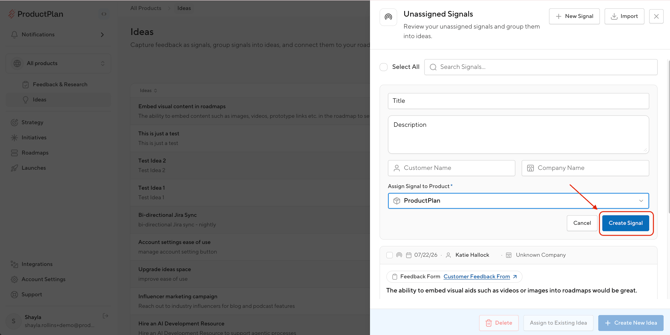
- Click 'Create Signal'. The Signal lands in the drawer, or attaches to the idea it was added in.
Import Ideas and Signals
Ideas and Signals must be imported separately.
When you are ready to import, navigate to the product you would like to import information to. You cannot import Ideas or Signals from the 'All Products' view.
- To import Ideas, click the Import button next to the Create New Idea on the Ideas page.
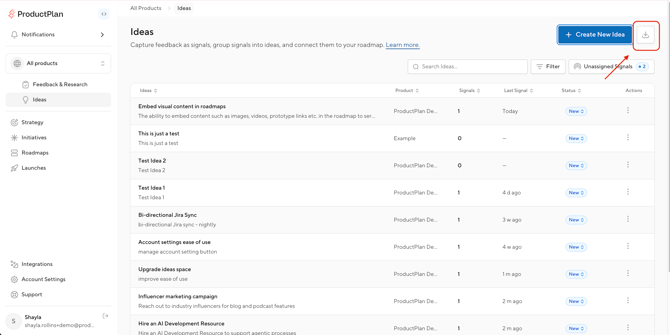
- To import Signals, open the Unassigned Signals drawer and click the Import CSV button.
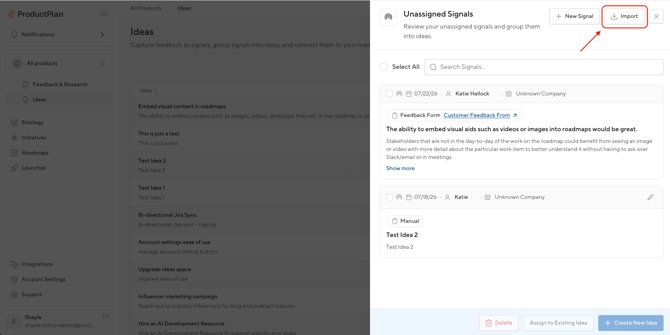
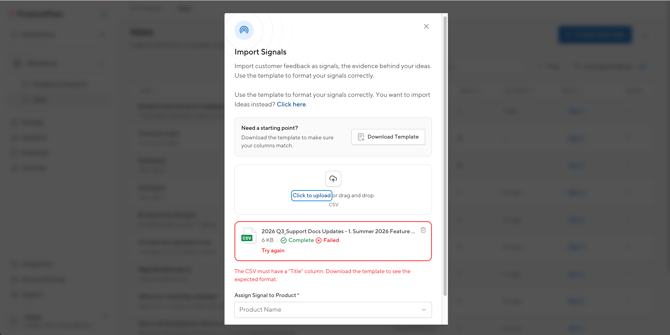
- Download the template and format your file to match it. CSV is the only accepted format at this time.
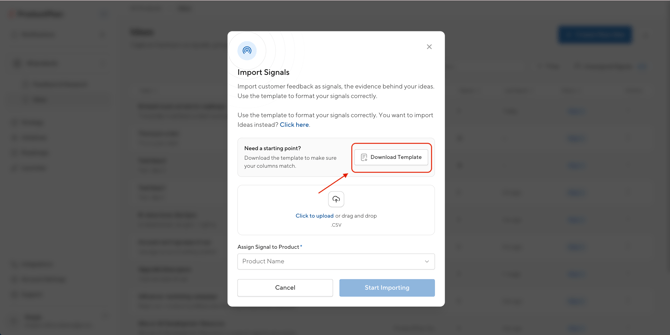
- Upload the file by drag and drop or the file picker.
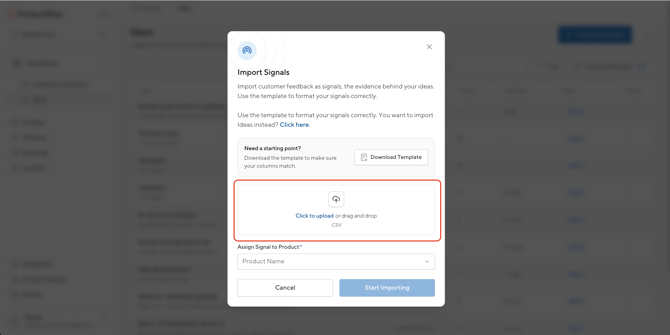
- The file is checked for format. A valid file shows the detected count before you start. If you receive an error message due to a malformed file, make the corrections in your file and upload it again.
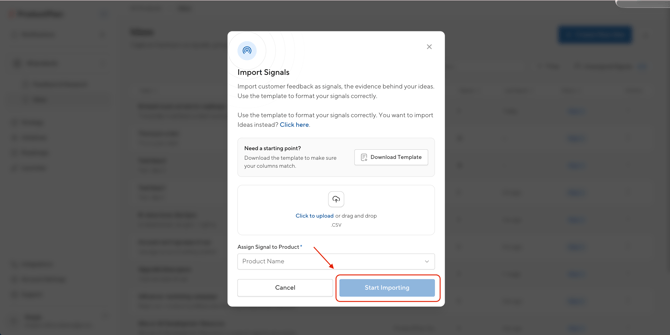
- Click the import button.
Triaging Signals into Ideas
New signals will not be attached to an Idea yet and will land in the Unassigned Signals drawer. A counter on the Ideas navigation item and on the drawer button indicates how many signals are awaiting review. You can triage signals and decide whether each signal supports an existing idea or starts a new idea.
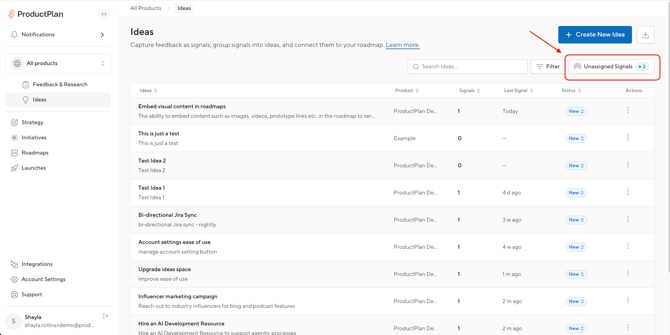
In the Unassigned Signals drawer, you can:
- Search the unassigned Signals
- Select one signal, or several, to act on them together
- See when you're all caught up, if there are no unassigned Signals
Add Signals to an Existing Idea
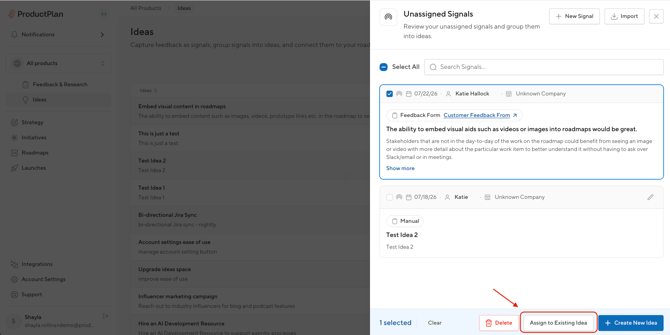
- In the Unassigned Signals drawer, select one or multiple Signals.
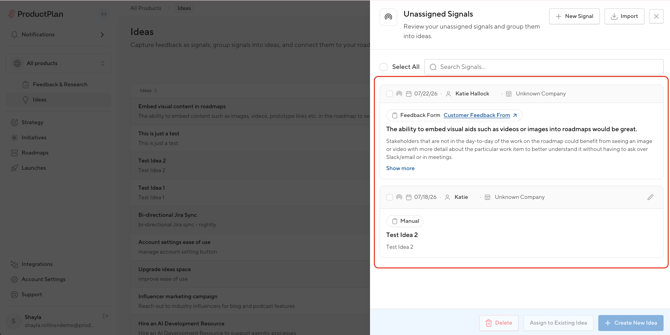
- Click the Assign to Existing Idea button.
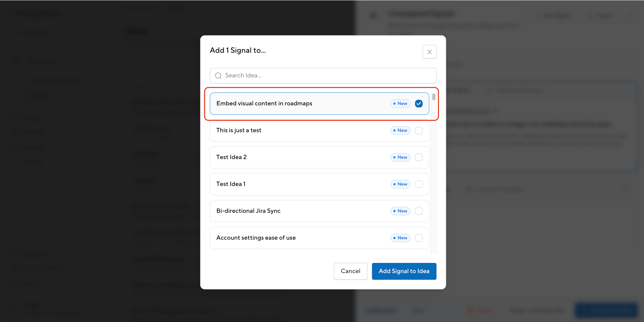
- Search for the Idea in the modal and select the Idea to attach the Signals to it.
Create a New Idea from Signals
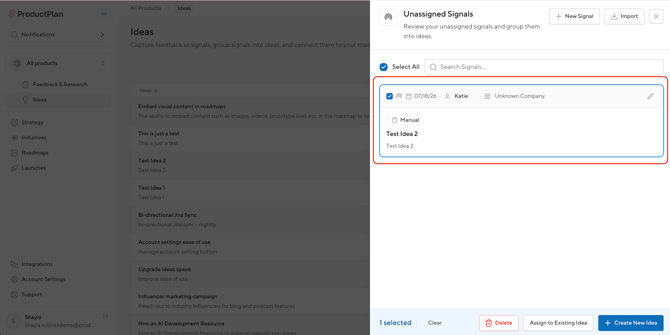
- In the Unassigned Signals drawer, select one or multiple Signals.
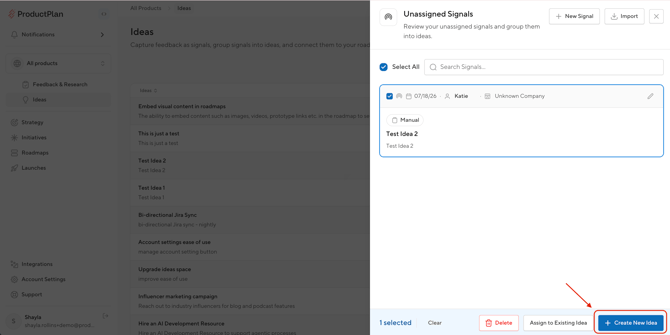
- Click the Create New Idea button. The Create New Idea modal opens. Once created, the Signals will attach to the new Idea.
Working with Ideas
The Ideas Table
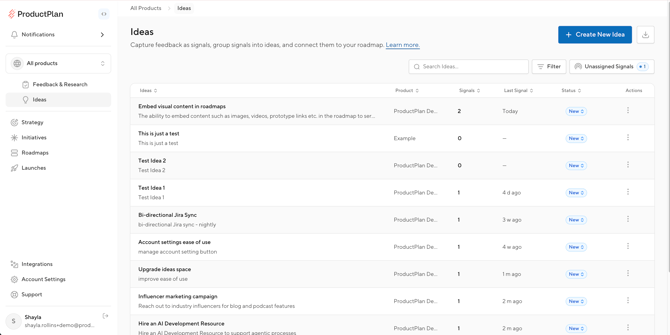
The Ideas page is your home base for managing the backlog. Each row in the table is an idea. The table is paginated, searchable, and sortable. The columns are:
- Title and a short description
- Signals: The count of evidence attached
- Last Signal: The date the most recent signal was added
- Status: Editable inline from the row
- Product (if in the All Products view)
Searching and Filtering the Ideas Table
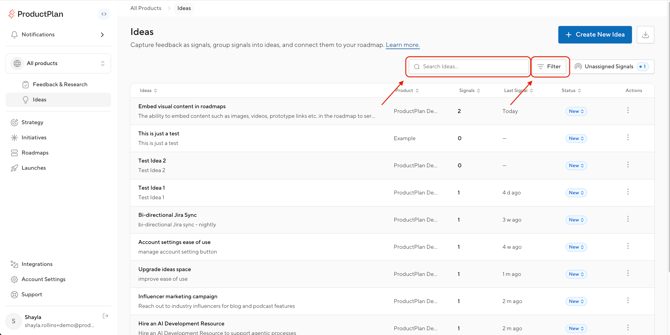
The search function is located in the top-right of the table. The search matches on idea title and description as you type.
The filter function is located next to the search function. Open the filter to switch between Active and Archived ideas, one at a time.
- New filters: Filter your Ideas list by Keyword, Company, or Customer, alongside the existing Status and Reporter filters. Select one or more values in any filter.
- Filter by Product: In the All Products view, narrow your list to the products you care about.
- Filter by Reporter: the person who created or imported the idea
- Filter by Status: The progress label in which the idea stands (see next section for more on statuses).
- Typeahead suggestions: Adding a Keyword, Customer, or Company now shows matching existing values as you type, so near-duplicate tags don't split your evidence.
- Idea links from Initiatives: Connected Idea titles are now hyperlinked and open the Idea directly.
Idea Status
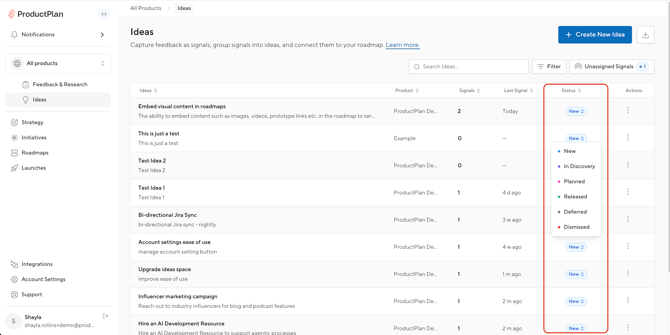
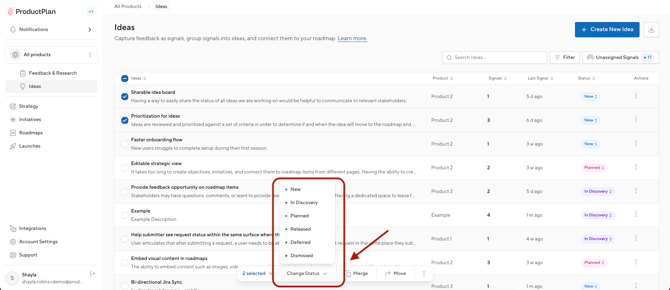
Status is both a communication tool and a work management tool. It tells everyone where an idea stands. A new idea starts at New, and you can update the status as the idea progresses. The statuses are:
- New
- In Discovery
- Planned
- Released
- Deferred
- Dismissed
You can change the status inline from the table or from inside the Idea. Viewers can see status but cannot change it. Status does not tie into the roadmap.
Archiving and Deleting
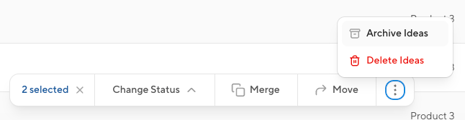
Archiving or deleting an idea can be done through the overflow menu (3 dots) located at the end of a row in the Ideas table, or in the menu inside the Idea drawer.
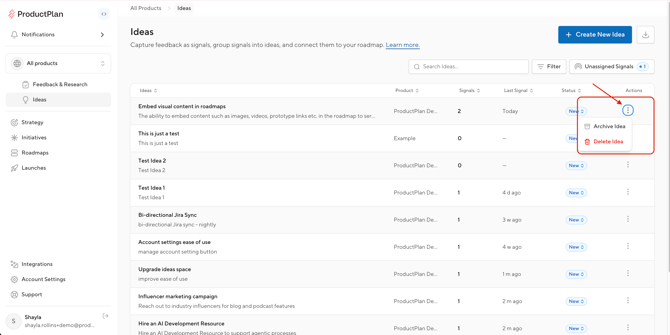
- Archive moves an idea out of the active list. It stays under the Archived filter and can be unarchived. An archived idea is read-only until it is unarchived.
- Delete is a permanent action and requires confirmation. Signals on a deleted idea return to the Unassigned Signals drawer, so the evidence is not lost. Any connected Initiatives to a deleted Idea will be unlinked.
The All Products View
Switch to All Products to see every Idea you have permission to across the account, with a Product column added on the table.
- You can still change status and act on ideas in products you can edit.
- The Unassigned Signals drawer is not available in the All Products View as triaging happens inside a product.
- Importing is not available in the All Products View.
Inside an Idea
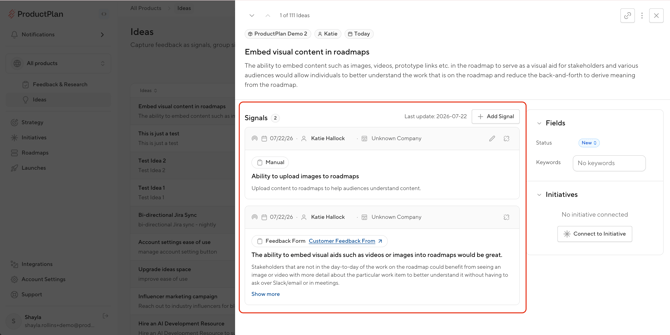
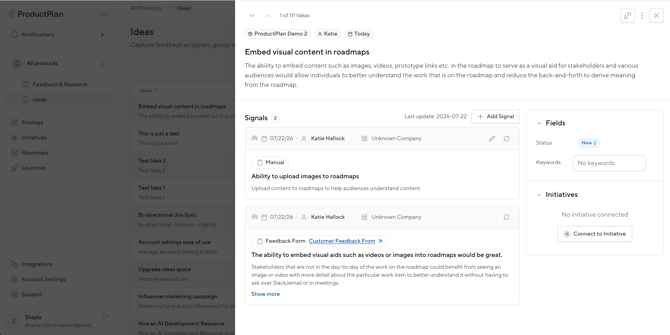
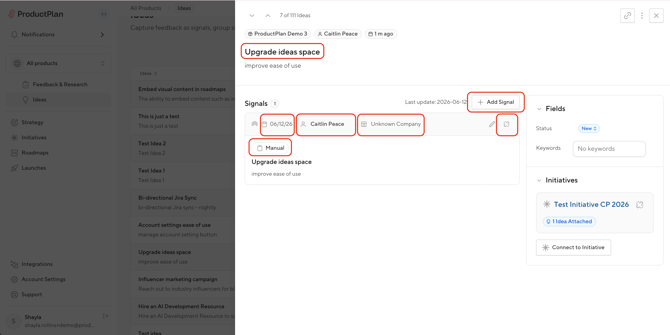
Click on a row in the Ideas table to open the idea in a two column drawer. The left column contains the Idea's Signals. The right column contains the Idea's status, keywords and Initiatives.
Navigating and Sharing
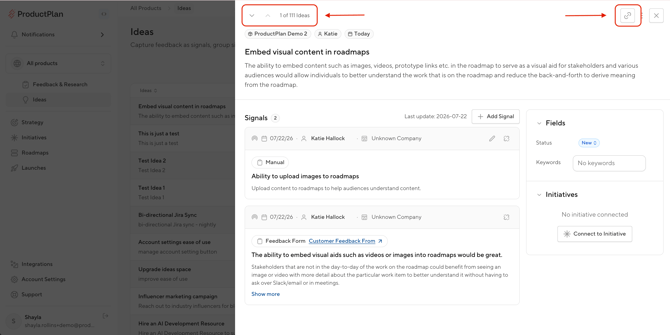
- In the top-left corner of the Idea drawer, up and down arrows move between ideas without leaving the drawer, with a counter showing your position. For example: 2 of 51.
- In the top-right corner of the Idea drawer, the Copy Link button copies the Idea's URL. It respects product permissions and is not a public link, so anyone you send it to must already have access to the product.
Idea Details and Fields
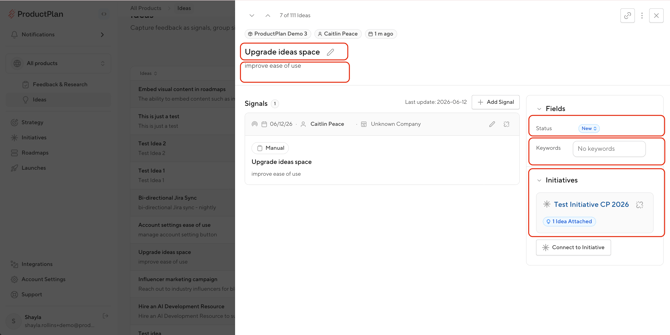
- Title and description are editable inline.
- Status and keywords are located in the right column.
- For Keywords, start typing to reuse an existing one, or add a new one.
- Initiatives show any initiative connected to the Idea, with its title and a short description.
- Click through to open it, connect a new one, or unlink.
Signals on an Idea
- Each Signal shows its customer, company, source, and date, with the submitted content.
- Source shows the Feedback Form the Signal came from, or Manual if it was added manually through the Ideas page or imported.
- For a Feedback Form Signal, click the form title hyperlink to open the original response.
- Click the View More link to expand a Signal and see all of its details including every question and answer from a Feedback Form submission.
- Add a Signal manually by clicking the + Add Signal Manually button at the top of the left column.
- To detach a Signal, click the Detach icon located in the top-right of the Signal, which returns it to the Unassigned Signals drawer.
Bulk Actions for Ideas: Move, Merge, Archive & More
You can now select multiple ideas at once and act on all of them together, instead of updating one idea at a time. This is useful for cleaning up a messy backlog, or getting a freshly imported set of ideas organized quickly.
With one or more ideas selected, you can:
- Move ideas to a different product
- Merge duplicate ideas into one
- Archive ideas
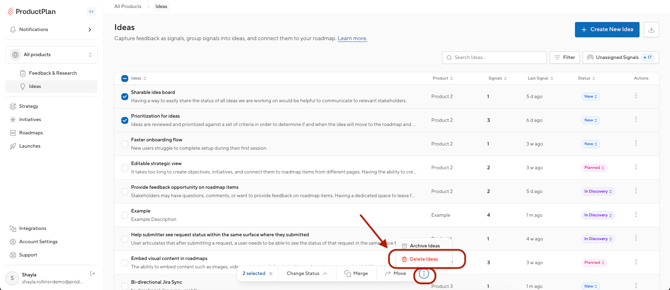
- Delete ideas
- Change status on ideas
Who can use this
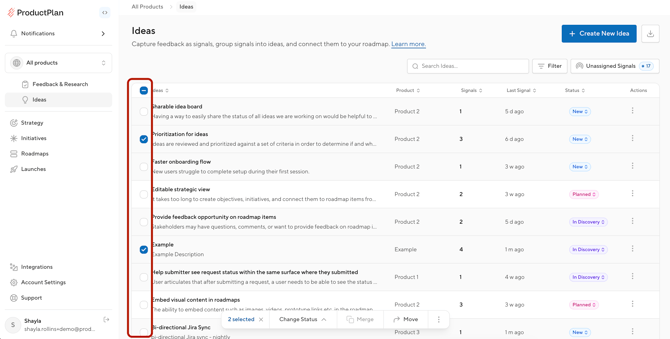
Bulk selection requires an editor's license. If you're viewing ideas in the All Products view, checkboxes only appear on ideas belonging to products you have edit access to — ideas you can only view won't have a checkbox, and "select all" will only select the ideas you're able to act on.
Selecting ideas
Each idea row has a checkbox, and there's a select-all checkbox in the table header. As soon as you select one idea, an action bar appears at the bottom of the screen and stays visible as you scroll. It shows how many ideas you've selected and which actions are available for that selection.
You can select ideas from a single product's Ideas table or from the All Products view.
Moving ideas
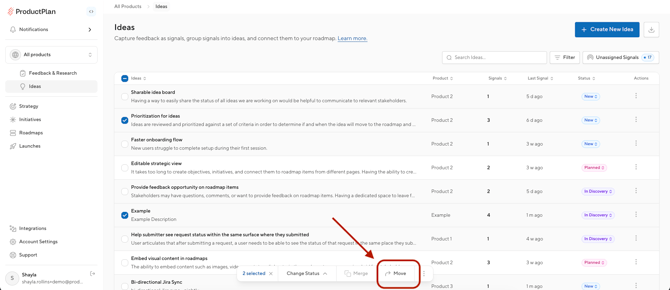
Move sends selected ideas and their attached signals to a different product.
To move ideas:
- Select one or more ideas and choose Move from the action bar.
- Pick a destination product. Only products you have edit access to will appear in the list.
- The ideas and their signals move to the chosen product.
Move works whether your selection is from a single product or spans multiple products in the All Products view.
Merging ideas
Merge combines two or more duplicate ideas into a single idea, so the evidence behind a request isn't split across multiple entries.
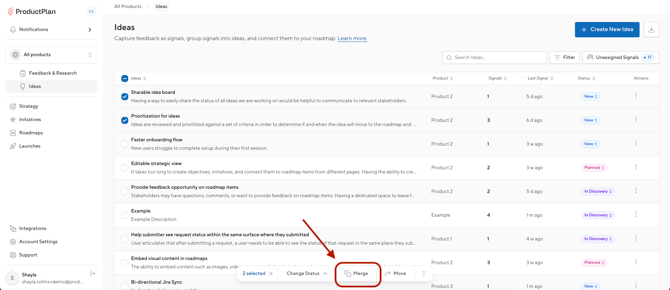
To merge ideas:
- Select two or more ideas from the same product and choose Merge from the action bar.
- In the Merge Ideas window, review each idea and choose which one should survive.
What happens when you merge:
- All signals from the other ideas reattach to the surviving idea
- Keywords and initiative links from the other ideas are added to the survivor
- The other ideas are archived, and each one shows a link back to the idea it merged into
- The survivor keeps its own status; a merged idea's status never overwrites it
Important: Merge is permanent and cannot be undone. There's no separate confirmation step beyond the Merge window, so choose the surviving idea carefully.
A note on scope: ideas from different products can't be merged with each other. If your selection spans more than one product, the Merge action will be disabled. To merge ideas from different products, move them into the same product first, then merge.
Archiving ideas
Archive removes selected ideas from your active list in one action — it works the same as archiving a single idea, just applied to your whole selection at once. In the All Products view, each idea archives within its own product.
Archived ideas can be restored the same way you'd restore any archived idea today, and they remain available to Move or Merge from the Archived filter.
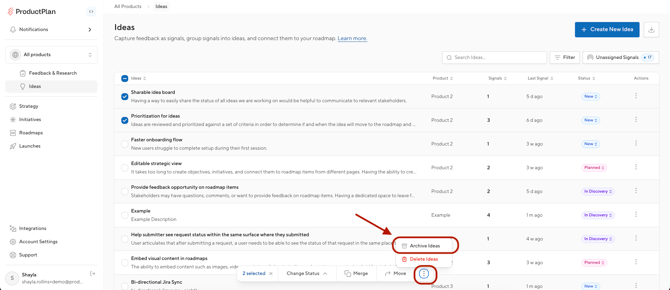
Deleting Ideas in Bulk
Delete permanently erases the idea and its content. This cannot be undone. It works the same as deleting a single idea, applied to your selection.
Changing status in bulk
Change Status updates the status of every selected idea to the value you choose. This works whether your selection is within a single product or spans the All Products view.
AI Idea De-Duplication
Find Duplicates: AI-Suggested Merges
You can now use AI to scan an idea list and get a set of suggested duplicate groups, instead of hunting for repeats yourself. This is especially useful for duplicates that describe the same problem in different words — the kind that search and manual review are most likely to miss.
Find Duplicates reads every active idea in a product, along with the signals attached to each one, and groups the ideas that describe the same customer problem. The AI never merges anything on its own — every suggestion waits for a person to review and approve it.
Running a Scan
- Navigate to the Ideas page within a single product.
- Make sure the product has at least 2 ideas created.
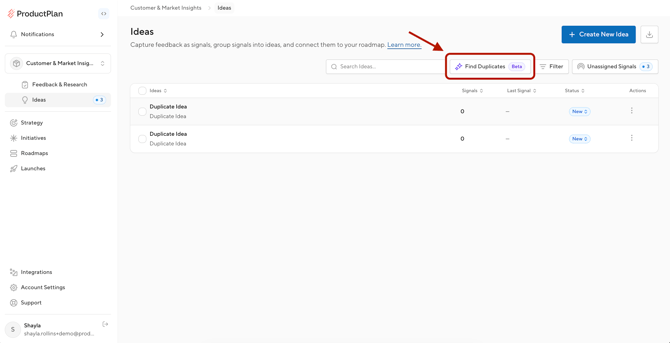
- Click the 'Find Duplicates' button next to the Filter option.
- A progress window opens and shows what's happening while the scan runs. It reviews all active ideas in the product where the scan was started.
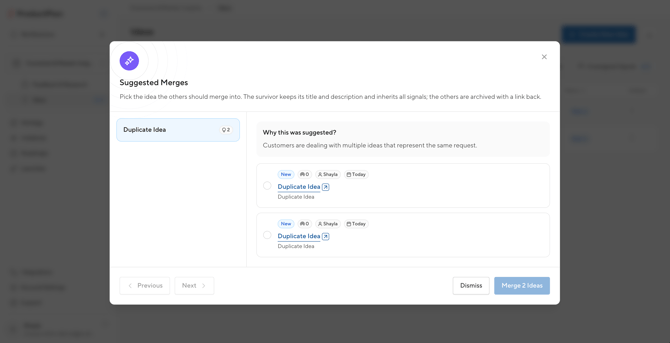
- When the scan finishes, your list of suggested merge groups appears.
The 'Find Duplicates' button isn't visible if:
- You aren't in a single product view (for example, you're in the 'All Products' view)
- The product has fewer than 2 ideas
- You have a viewer's license
- AI is disabled for your account
Reviewing Suggested Merges
The Suggested Merges window lists every group found on the left, with the details for the selected group on the right. You can move between groups to take action, or close the window at any time.
With a group selected, you can:
- Review why the group was suggested
- Open any idea in a new tab to see more detail
- Remove an idea that doesn't belong in the group
- Select which idea survives
- Dismiss the group instead of merging it
Once you've picked a survivor, click 'Merge'. This works exactly like the existing bulk merge action — signals from the merged ideas consolidate onto the survivor, and the other ideas are archived with a link back to the survivor.
Closing the window, or dismissing a group, clears those suggestions for good. Nothing is saved between sessions, so you'll need to run Find Duplicates again to see them.
Feedback Forms
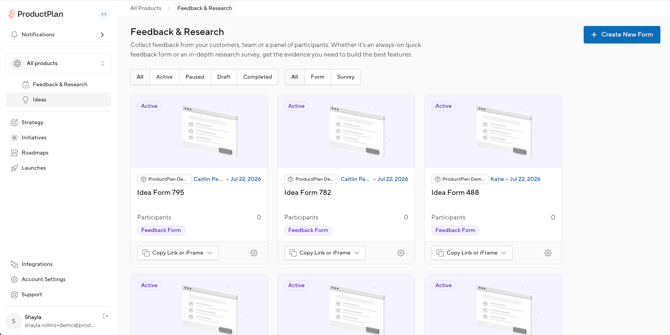
Feedback Forms are how customers and stakeholders submit feedback. Each submission becomes one Signal. Unlike a Research Survey, a Feedback Form is always on. It has no cap on submissions and does not expire.
The Feedback & Research Area
The Feedback & Research area provides a unified building experience for both Feedback Forms and Research Surveys.
On the dashboard:
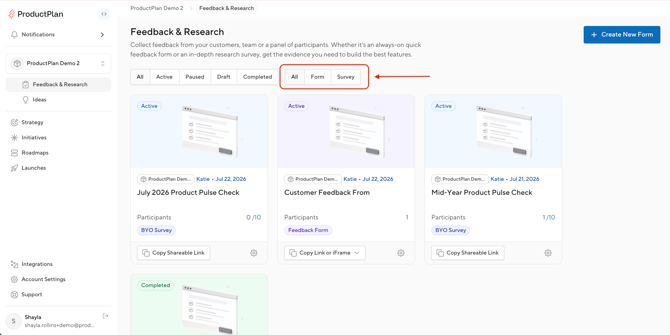
- Use the Type filter at the top of the page to filter between All Items, Feedback Forms, or Surveys.
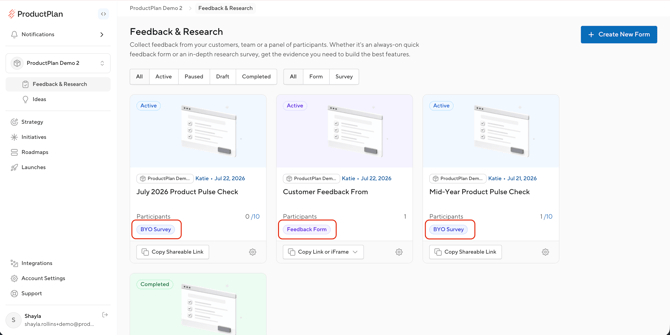
- Each tile shows an indication of what type it is:
- Feedback Form
- Survey: BYO
- Survey: Panel
Creating a Feedback Form
Follow the steps below to get started with a new Feedback Form.
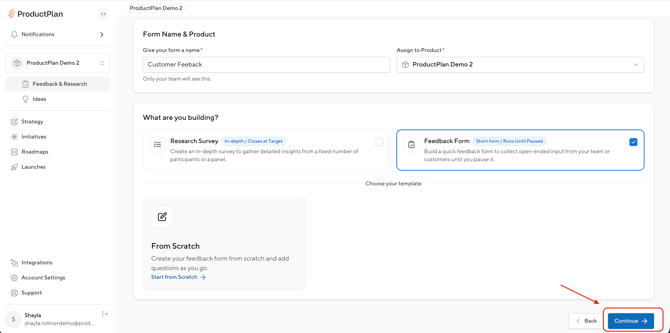
- Click the Create New Form button.
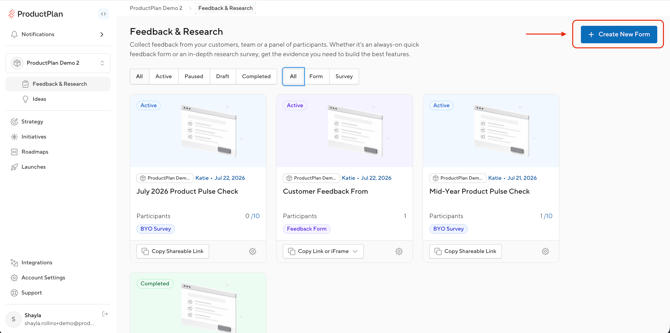
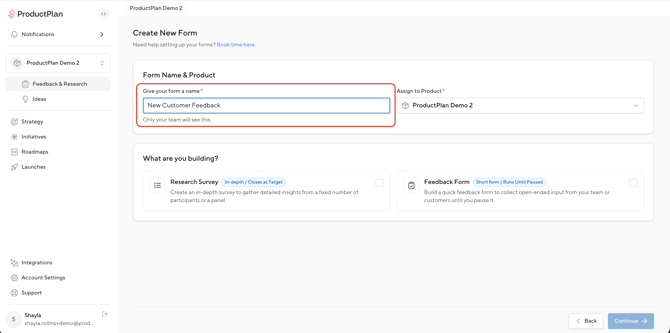
- Enter the Form Name. This name is internal, and only your team sees it.
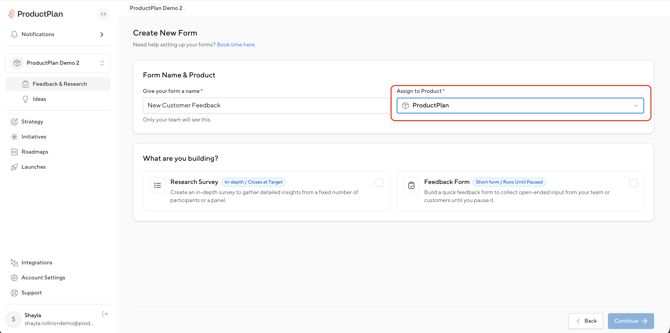
- If you are creating the form from within a product, the product will be populated for you. If you are in the All Products view, select the product this form is for.
- Select the 'Feedback Form' Type. You can also duplicate from an existing form.
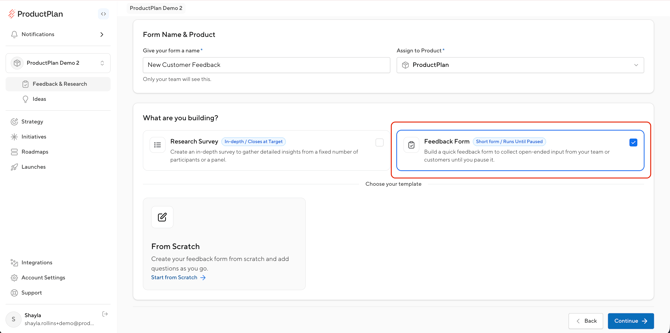
- Choose a template or start from scratch, then click the Next button to continue building your form.
Building a Feedback Form
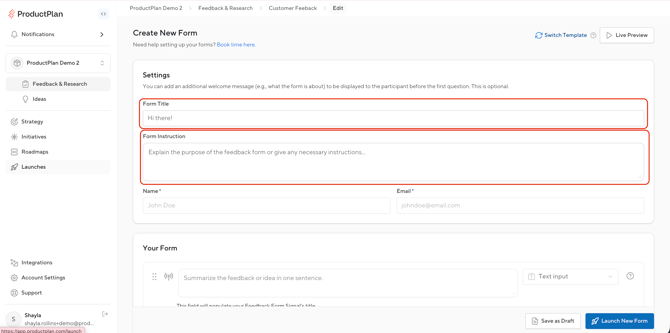
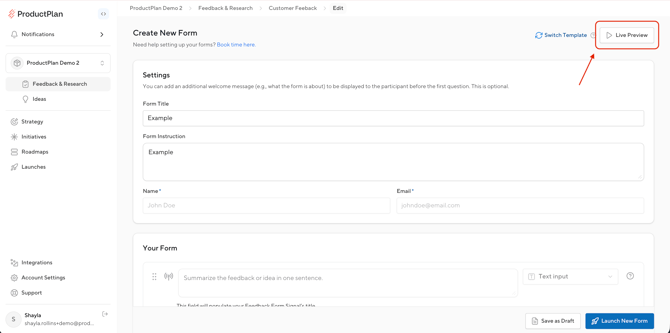
The Feedback Form builder is a single page, with a live preview link.
- Define the settings for your Feedback Form. In the Form Title field, set the external-facing title. In the Form Instructions field, enter any applicable instructions.
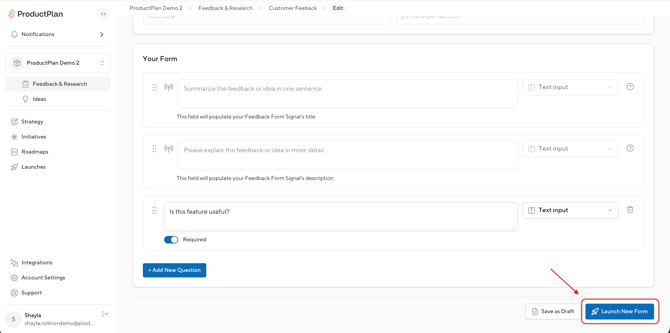
- Customize the questions on your Feedback Form with the following options:
- Click the Add New Question button to start a new question.
- Enter the question and select the question type: Text input, Multi-choice, or Rating system (0 to 10).
- Multi-choice can be single-select or multi-select, and can include an Other free-text option.
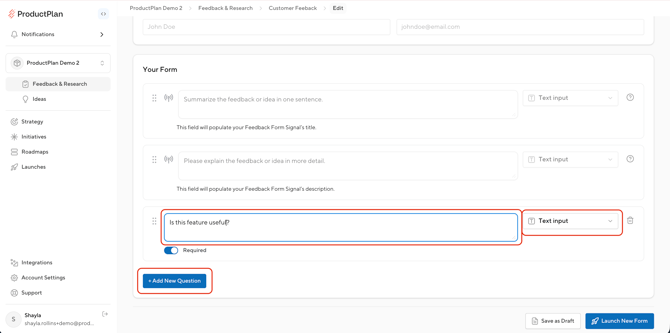
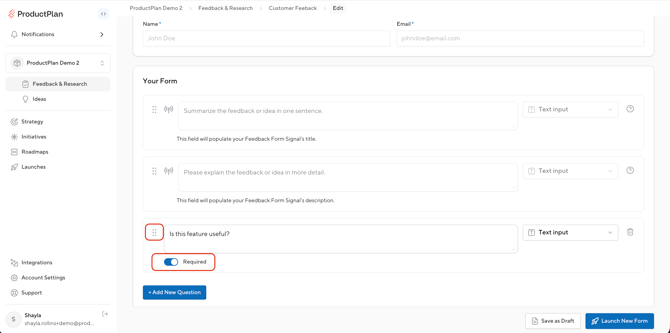
- Mark each question as required or optional. Use the drag and drop function to reorder questions.
- Name and email are required and always collected.
- Title and description are required and always collected.
- Use the Live Preview button at the top of the page to preview the form.
- Click the Launch Form button.
Launching and Sharing a Form
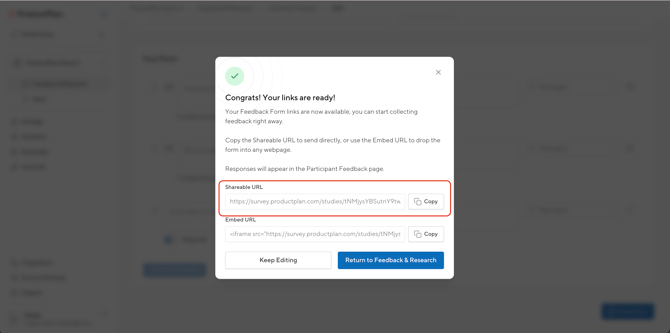
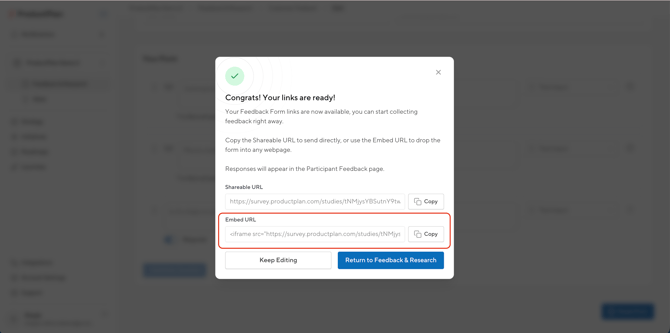
After clicking the Save Form button, a modal will open with two copy-and-paste links:
- Share Link: A public URL to share with anyone outside your account.
- Embed Code: An embed URL to place the Feedback Form in another site, such as an internal wiki.
The Participant Experience
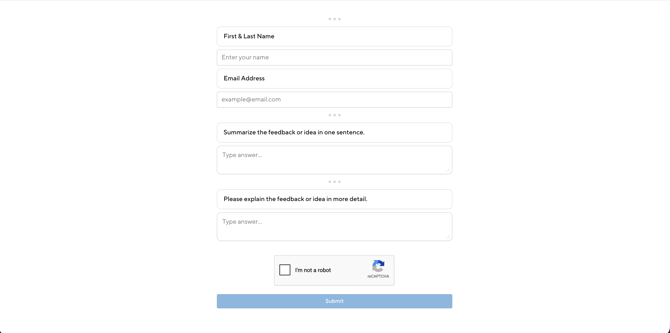
When a participant views your Feedback Form, they will be able to view the questions and submit their responses from a single page.
- The Form Title and Form Instructions display at the top, if set.
- The participant will enter their name and email, and provide answers to the questions in the form.
- A Google reCAPTCHA checkbox handles anti-spam.
- Once submitted, the response is visualized in the Feedback Form results as well as in the Unassigned Signals drawer.
The Results Page
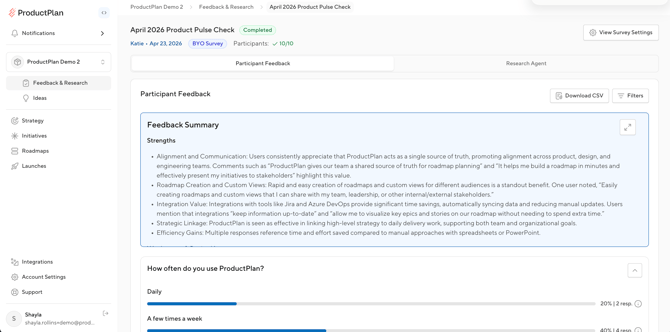
To view responses to a Feedback Form, open an active form and view the Participant Feedback page.
- The Participant Feedback page will show responses as they arrive.
- Responses are grouped by respondent. Click a name to open the response in a new tab.
- Downloading a CSV of responses can be done through the Download CSV button at the top-right of the Participant Feedback page.
FAQ
Does the new Ideas experience use AI?
Not in this release. Everything works manually: you can group signals into ideas and set status as needed. In future releases, AI will help route signals and drafts idea titles and summaries.
Can a signal be added to more than one idea?
No - one signal belongs to one idea. A single signal cannot be on two ideas at once.
Can a viewer make changes to Ideas or Signals?
A viewer can open an Idea and read everything: details, status, keywords, Initiatives, and Signals. A viewer cannot edit fields, change status’, attach or detach Signals, or change initiative links, and does not see the overflow menu.
Can a Feedback Form collect feedback for more than one product?
Not in this release. Each Feedback Form belongs to one product, the same way surveys do. We recommend creating a separate Feedback Form per product.
Can I share an idea link with someone outside my account?
No. The idea link respects product permissions and is not public. Anyone you share it with must already have access to that product. The public share link on a Feedback Form is the one link meant for an outside audience.
What happens to the signals on an idea I delete?
Deleting an idea is permanent, but the signals are not lost. They return to the Unassigned Signals drawer, where you can attach them to another idea.
Can I move a signal from one idea to another?
Not directly in this release. We recommend detaching the signal, which returns it to the Unassigned Signals drawer, and then attaching it to the idea you want. Support for directly moving and splitting Signals between Ideas is planned for future releases.
What happens to the signals on ideas I merge?
Nothing is lost. Every signal from the ideas you merge away reattaches to the surviving idea, so all the evidence ends up in one place.
Can I undo a merge?
No. Merge is permanent. The ideas merged away are archived and each links back to the survivor, but the merge itself can't be reversed — choose the surviving idea carefully.
Can I merge ideas that live in different products?
No. If your selection spans more than one product, Merge is disabled. Move the ideas into the same product first, then merge them.
Do signals come with an idea when I move it?
Yes. When you move an idea to another product, its signals move with it.
Does the AI merge anything on its own?
No. Every suggestion waits for a person. The AI groups ideas and explains why, and a PM with an editor license selects the survivor and approves the merge.
Can a merge from a suggested group be undone?
No. Merge is permanent, the same as the bulk merge action. Ideas merged away are archived and each links back to the survivor, but the merge itself cannot be reversed.
Can ideas from different products be suggested as duplicates?
No. A scan runs on one product at a time and only groups ideas inside it, since ideas from different products cannot be merged. Move ideas into the same product first to make them eligible.
Do the suggestions stay available after I close the window?
No. Nothing is saved between runs. Closing the window clears the suggestions, and Find Duplicates has to be run again. You can run a scan as often as you'd like.
Why don't I see the Find Duplicates button?
Check the following: you're in a single product view with edit access, the product has 2 or more ideas, and AI is enabled for your account. If AI isn't enabled, reach out to your admin.