
ProductPlan's research and survey capabilities bring customer intelligence and first-hand product discovery capabilities directly into your product planning workflow. With Research Surveys, your product teams can create surveys, recruit participants, analyze responses with AI, and explore their data all without leaving ProductPlan.
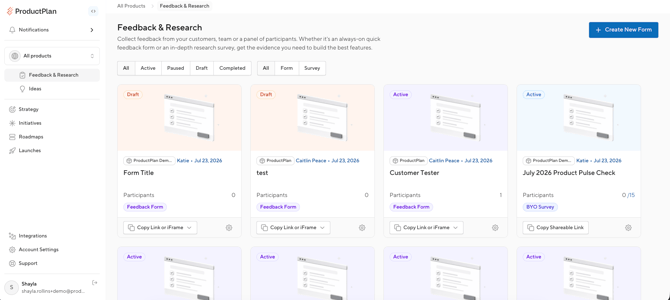
Click on any area below to learn more on how to get started with Research Surveys:
- Account Setup
Business Information - AI + Security
Data Privacy Assurance - Notifications
- Payment + Billing
- Surveys
Creation + Editing
Managing Surveys
Feedback, Reporting, and Summaries
Participant Experience - User Permissions
- Video
- FAQs
Account Setup
Business Information
Entering in your product and business information is crucial for utilizing AI features effectively, such as the feedback summary generation and idea segmentation.
Editors will be able to add product information to the surveys they create.
Account Setup FAQs
AI + Security
Data Privacy Assurance
Your privacy is our priority. Your interactions with our AI technology are never used to train models. We always use your data in accordance with our software agreement and privacy policy.
If you'd like to have the AI settings turned off for your entire team in your workspace, please reach out to your dedicated Customer Success Manager, or contact us at support@productplan.com.
Accounts without access to AI features will have disabled features:
- No AI moderator functionality
- No automated descriptions for uploaded media
- No image/website AI analysis
- No dictation mode for participants
AI + Security FAQs
Notifications
An Editor who launches a survey will receive email notifications when:
- A response is submitted
- Number of survey participants reaches the set survey limit
Payment + Billing
There is no additional cost to use ProductPlan's AI research tools if you source your own test participants using the "Use My Own Audience" option.
However, if you want ProductPlan to source participants for you, there is a per person fee depending on the specifics of the recruiting. These fees can be paid by credit card. This will not save the card to your organization's account and no one else on your team will have access to this payment method.
When launching a survey with ProductPlan sourced participants, you'll be prompted before launching your survey to pay with the credit card saved to your user profile.
Panel Survey
You will be charged once, upon launching your survey.
Incentivized BYO Survey
If you are using the "Use My Own Audience" option and choose to set a gift card incentive for your audience, additional charges will apply. You will be prompted to input a credit card before launching your survey. Payment schedule will be once per day and include charges for all accepted participant responses across a 24-hour period.
Payment + Billing FAQs
Surveys
Creation + Editing
To get started with a new survey, or edit existing surveys, click on Research Surveys from the left-side navigation menu.
Follow the steps below:
- Create a new survey
- Define your audience
- Set up screener questions (optional)
- Set up your survey
- Review and launch your survey
Survey FAQs
-
Create a new survey
-
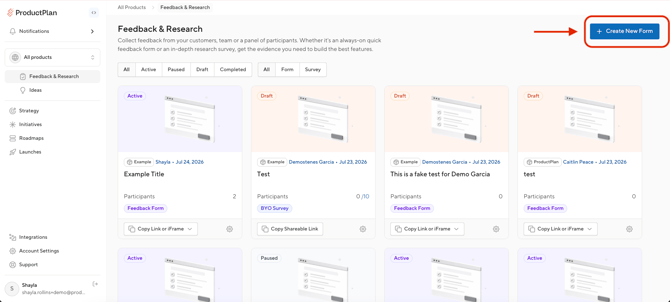
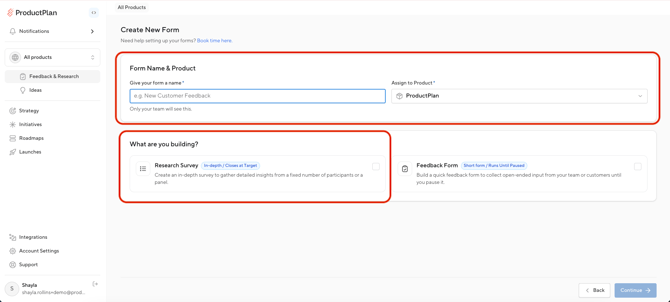
Click '+ Create New Form' in the top right, enter a survey name and product it is going to be attached to, and check the 'Research Survey' box to get started.
- Alternatively, you can duplicate a previously created survey. Below your survey name, select an option from the list to duplicate for your new survey.
- If you'd like the survey questions to be duplicated, please check the box 'Duplicate survey questions'.
- If you'd like the survey questions to be duplicated, please check the box 'Duplicate survey questions'.
-
-
Define your audience
-
Use ProductPlan Audience (Panel)
Select the option to survey LinkedIn-verified professionals recruited by ProductPlan.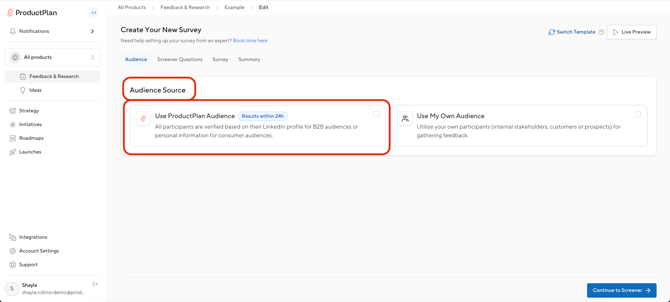
- Review pricing based on desired audience type.
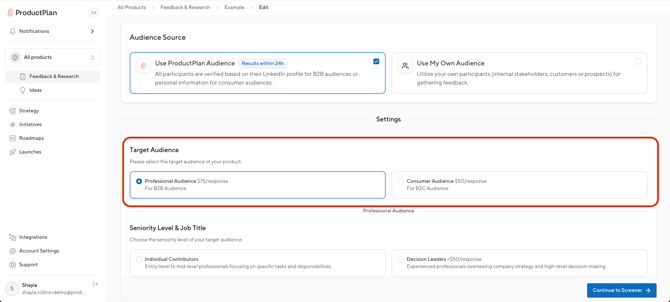
- Use targeting filters to define your audience: Age, Gender, Education, Income, Company Size, Location, Device, Marital Status, Home Owner, Children, Work Email, Professional Role (Individual Contributor or Decision Leader).
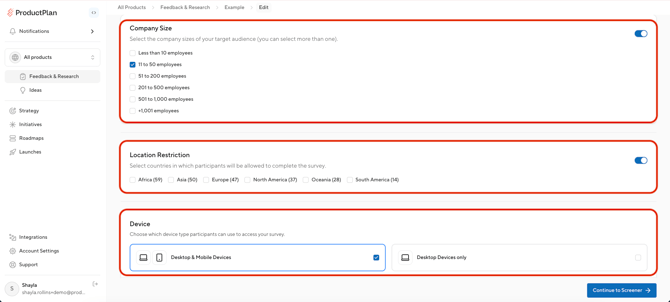
- All participants are verified through LinkedIn.
- Responses are delivered within 24 hours.
- Review pricing based on desired audience type.
-
Use Your Own Audience (BYO)
Select this option to survey your own customers, prospects, or stakeholders.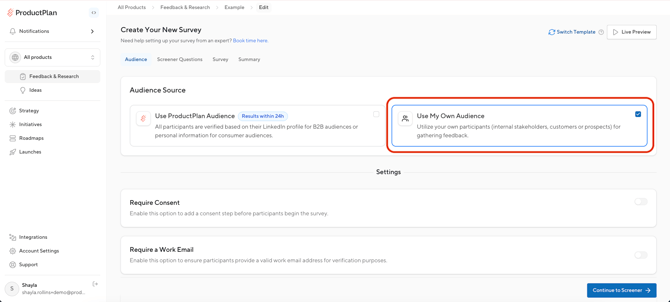
- Review the available settings to require a work email, enable location restrictions, and define device types.
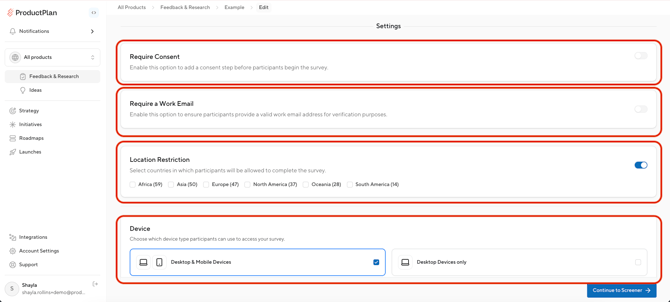
- On the Summary page, you can set an incentive amount to reward participants with a digital gift card (delivered via Tremendous, a third-party reward platform).
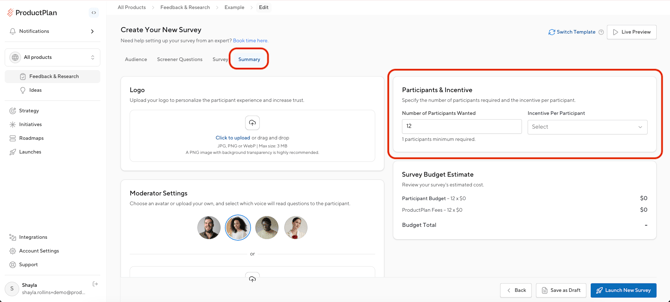
- Review the available settings to require a work email, enable location restrictions, and define device types.
-
3. (Optional): Set up your screener questions 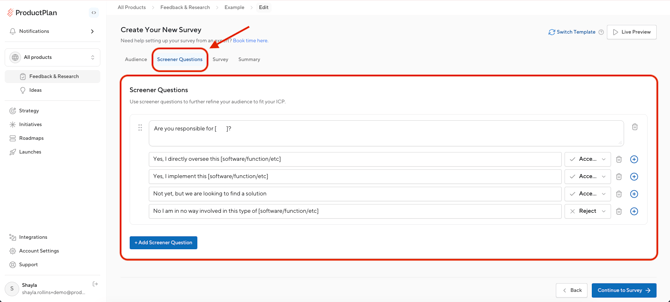
-
- Set up screener questions to appear before the main survey and qualify or disqualify participants based on their answers.
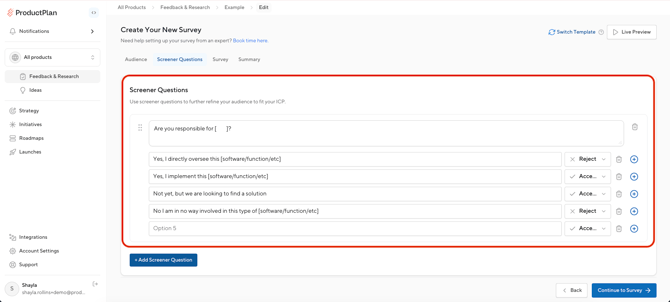
- You can add up to 3 questions for panel surveys or unlimited with BYO surveys.
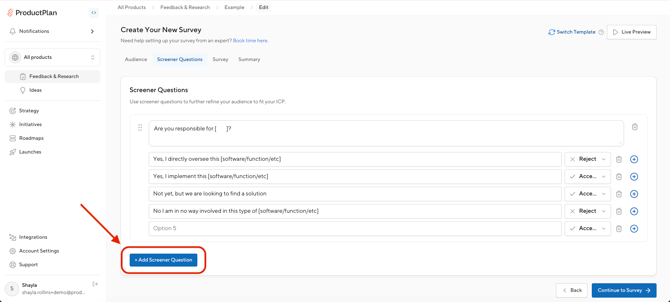
- For each question, enter your answer options and choose whether an answer will accept or reject a participant.
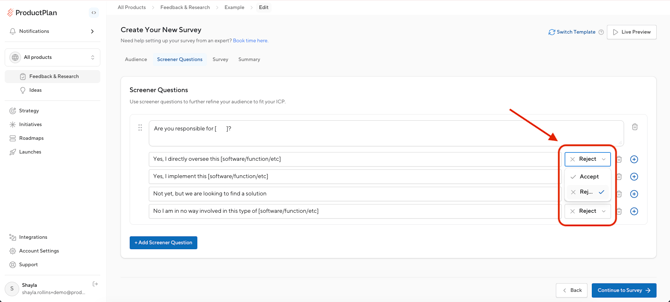
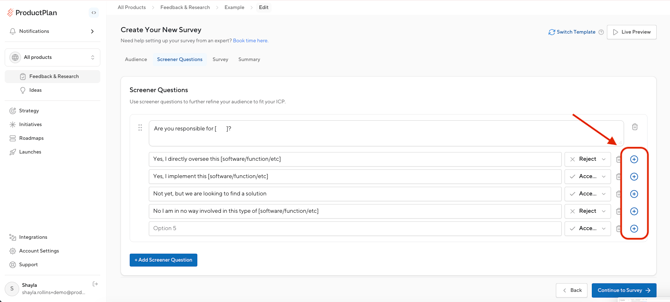
- Click the plus (+) icon to add additional answer options.
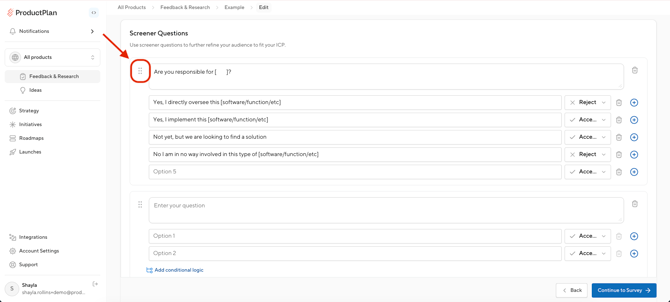
- You can reorder questions using the move handle in the top-left corner of the question.
-
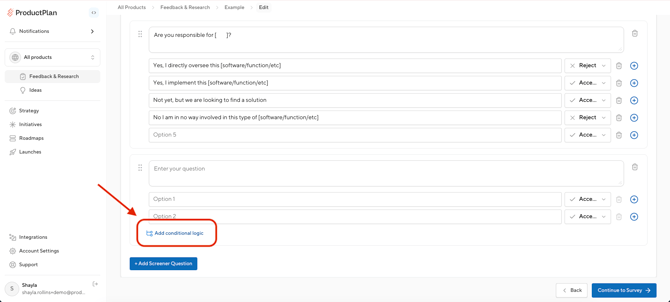
Click Add Conditional Logic to show or hide follow-up screener questions based on a participant's answer to a previous screener question.
- Set up screener questions to appear before the main survey and qualify or disqualify participants based on their answers.
4. Set up your survey
-
-
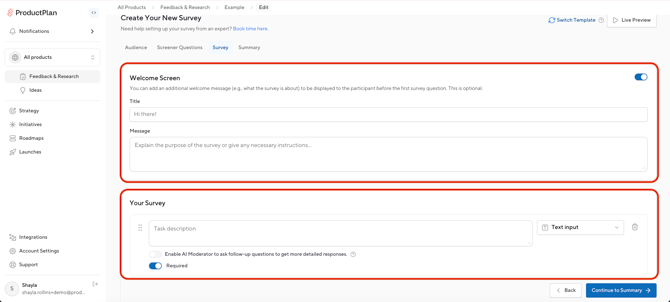
Set up your survey welcome page and survey questions.
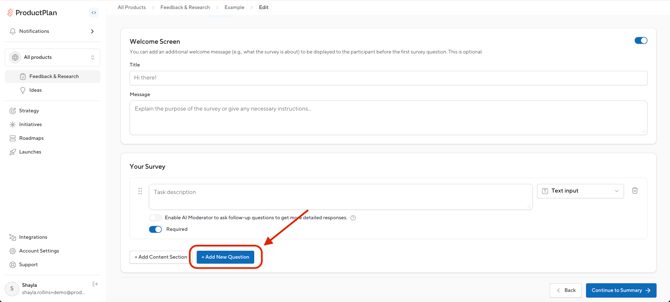
- To set up your own survey questions, click the 'Add New Question' button.
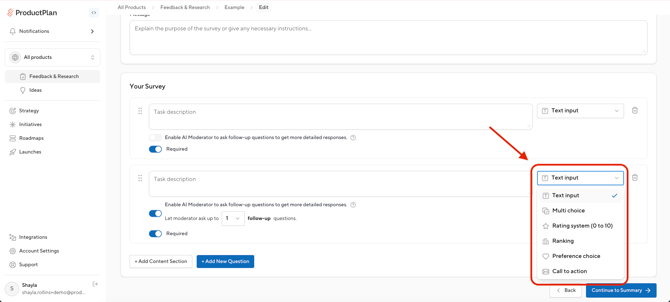
- Add questions to your survey. Select the question type in the dropdown. There are six available question types:
- Text input: Participants type their response in an open text field. If your account has access to AI features, you can enable the AI moderator on text questions:
- ProductPlan Panel audience: The AI Moderator is on by default, and will ask up to 3 adaptive follow-up questions in real-time based on each participant’s response.
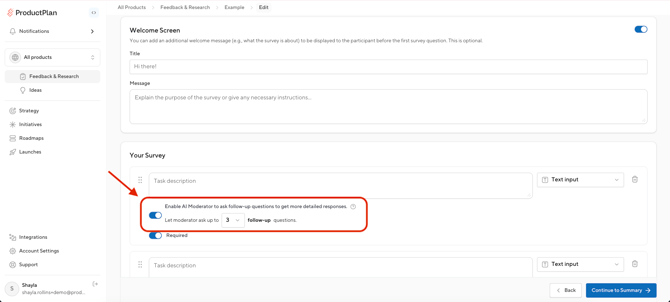
- BYO audience: You may choose whether to turn the AI Moderator on or off, with the number of follow-up questions configurable from 1 to 3.
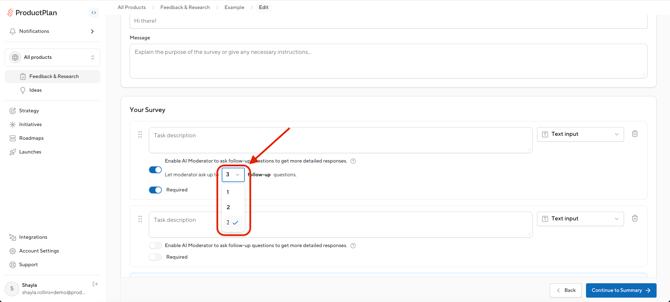
- ProductPlan Panel audience: The AI Moderator is on by default, and will ask up to 3 adaptive follow-up questions in real-time based on each participant’s response.
- Multi choice: Participants select a single choice or multiple choices. Includes an optional "other" write-in field.
- Rating: Participants provide a rating on a scale of 0 to 10.
- Ranking: Participants drag and drop options into priority order.
- Preference choice: Participants choose from images you upload. This is useful for design or concept feedback.
- Call to Action: Displays a link to the participant, such as a calendar booking URL.
- Panel surveys have a max of 10 questions total, with a max of 4 open-text questions, to keep the completion time under 10 minutes. BYO surveys do not have a question limit.
- Optionally, configure questions to be conditional and display based on how a participant responds to a prior survey question.
- Text input: Participants type their response in an open text field. If your account has access to AI features, you can enable the AI moderator on text questions:
- To add content for participants to review before answering, click Add Content Section:
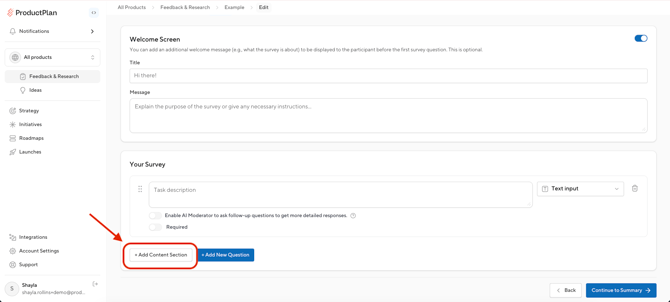
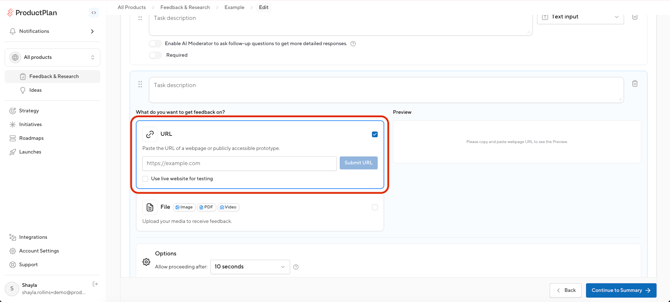
- URL: Add a static or live link, which is useful for prototype or concept testing.
- Media: Add an image, PDF, or video.
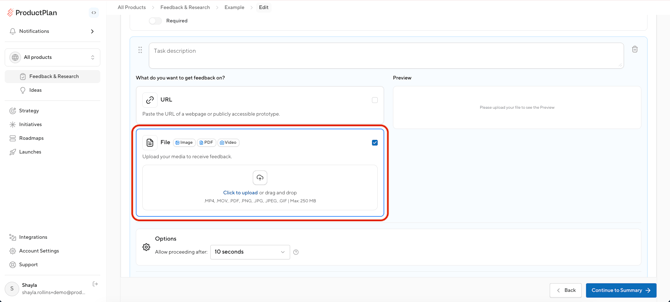
- You can require participants to spend a minimum amount of time on the content before they can advance to the next question.
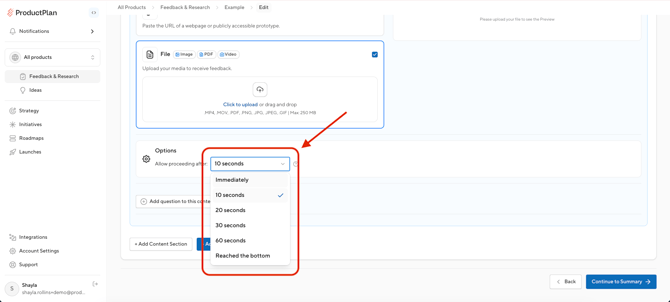
- URL: Add a static or live link, which is useful for prototype or concept testing.
-
5. Review and launch your survey
-
- Finalize your survey settings and configure your audience before launching.
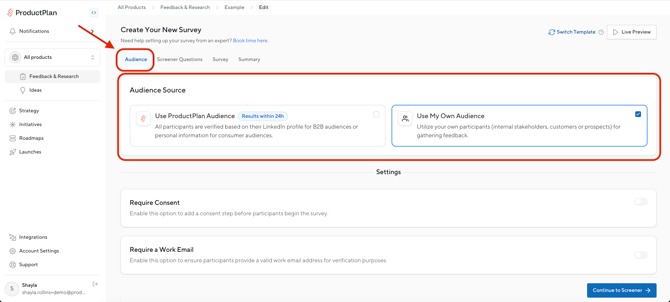
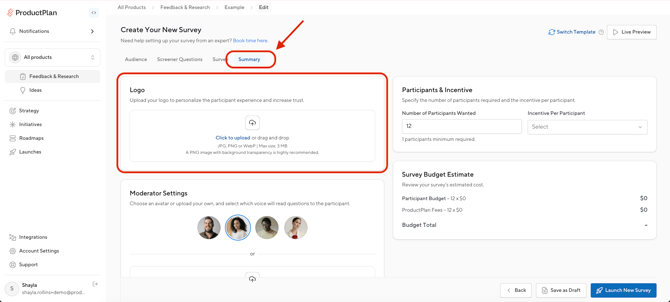
- For BYO surveys, if you are using a welcome screen, upload a company or product logo to be displayed to participants.
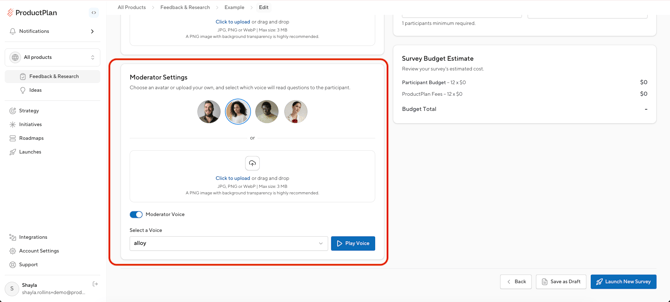
- If your account has access to AI features and you have enabled the AI moderator in your survey, select a preset avatar voice and image, or upload a custom image for the AI moderator. This is the AI persona participants will see during the moderated conversation.
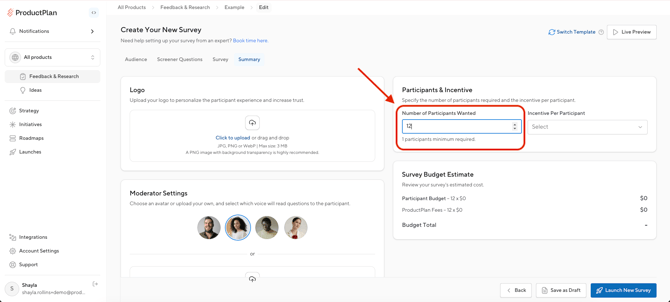
- Enter the number of participants you want to receive for the survey.
- Note: For panel surveys, this cannot be changed after launch.
- Note: For panel surveys, this cannot be changed after launch.
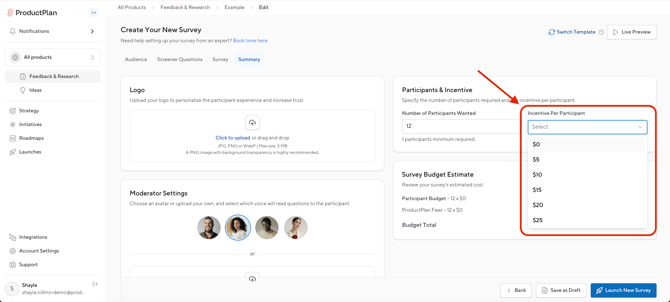
- For BYO incentivized surveys, enter a gift card incentive amount for participants. Otherwise, select $0 if you do not want to distribute a gift card reward to participants.
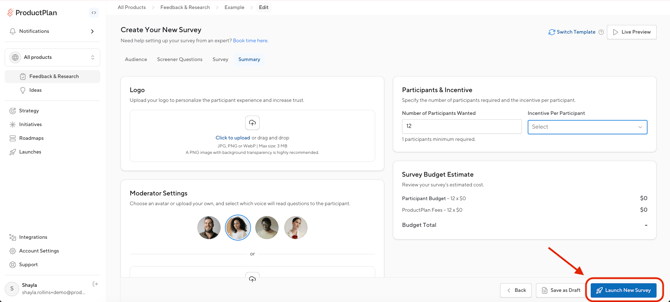
- Click Launch New Survey button to launch your survey.
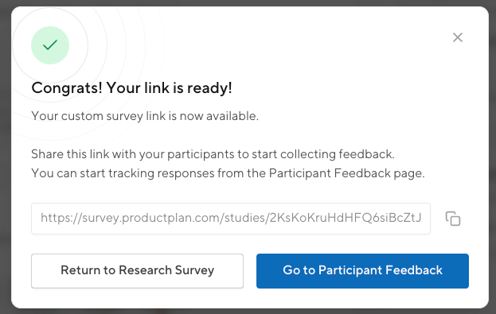
- Your survey link will generate. Copy the link to share it with your audience and start collecting responses!
- Finalize your survey settings and configure your audience before launching.
Managing Surveys
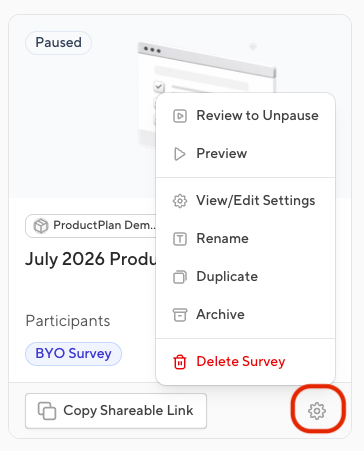
Editors can edit, relaunch, and manage surveys through the Settings menu (⚙️) on any survey.
-
Editing a survey
- To edit a survey, click the Settings menu on an Active survey.
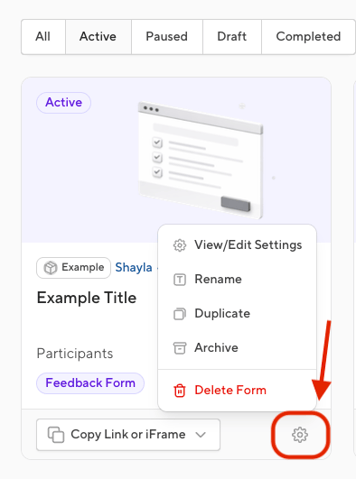
- Select Pause Survey. This will change the status to Paused, and no new responses will be accepted.
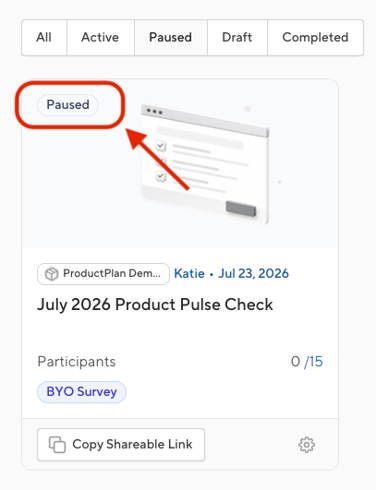
- Any editor can pause a survey.
- To update the participant count or incentive amount on a BYO survey, the survey must be paused first. The participant count cannot be reduced below the number of responses already received.
- Note: For panel surveys, the number of participants cannot be changed after launch.
- Charges continue to be applied to the original launcher's saved credit card regardless of who makes changes.
- To edit a survey, click the Settings menu on an Active survey.
-
Relaunching a survey
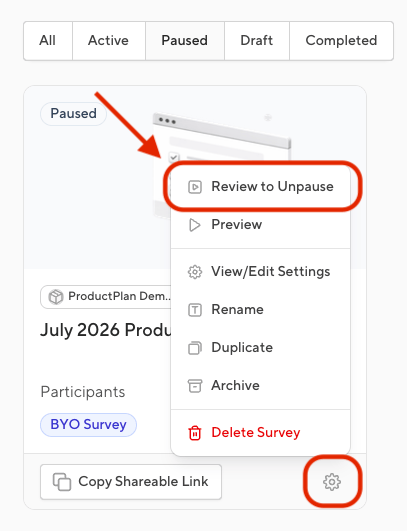
- To relaunch the survey, click the Settings menu on a Paused survey and select “Review to Unpause.”
- Click the “Launch Survey” button on the Summary page to re-launch the survey.
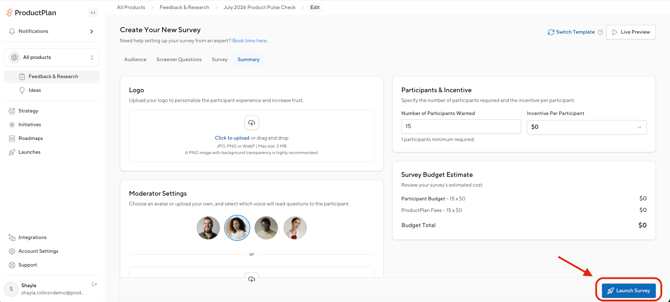
- The survey will resume and begin accepting responses again.
- To relaunch the survey, click the Settings menu on a Paused survey and select “Review to Unpause.”
-
Other actions
- Preview: Test the survey experience.
-
- End Survey: Close the survey at the current state. This action accepts all pending responses and issues payments.
- View/Edit Settings: View your survey settings and edit settings of a paused survey.
- Rename: Update the survey name.
- Duplicate: Create a Draft copy with all settings intact.
- Archive: Add an archived tag to a completed survey. All data is preserved.
- Delete: Permanently delete the survey and all its data. Requires confirmation.
Feedback, Reporting, and Summaries
Viewing Results
Editors and Viewers can click on any survey card from the Surveys index to view survey responses and see the survey settings.
-
Participant Feedback
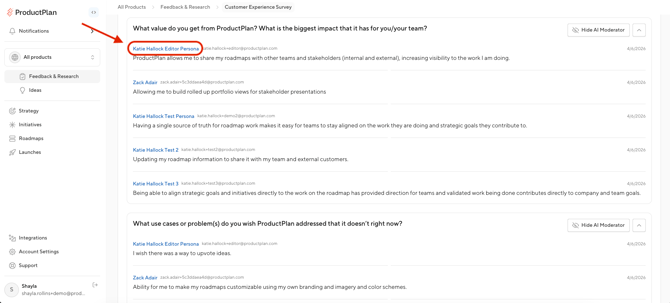
- Editors and Viewers can see all the responses to a survey and download a CSV of all responses. Responses are organized by question in collapsible cards. To view a single participant’s responses, click on their name.
- Reviewing Participant Feedback
- Incentivized BYO surveys:
- There is a 72 hour review window on responses. During this time, editors can review responses and if needed, reject responses, or ask participants to complete the survey again.
- Generating a feedback summary of your survey will turn off the ability to report or delete sessions.
- Incentivized BYO surveys:
- Editors and Viewers can see all the responses to a survey and download a CSV of all responses. Responses are organized by question in collapsible cards. To view a single participant’s responses, click on their name.
-
-
- Non-incentivized BYO surveys:
- You may chose to delete a participant's response from your results.
- Generating a feedback summary of your survey will turn off the ability to report or delete sessions.
- Panel surveys:
- Editors can report participant responses within 72 hours if participants do not meet the provided criteria, such as demographic or firmographic requirements. All reported responses will go to the ProductPlan team for review and final approval or rejection.
- If contesting a participant’s response, their response will also be reviewed by the ProductPlan team for final approval or rejection. If rejected, the participant will be asked to re-take the survey.
- Generating a feedback summary of your survey will turn off the ability to report or delete sessions.
- Non-incentivized BYO surveys:
-
-
AI Feedback Analysis
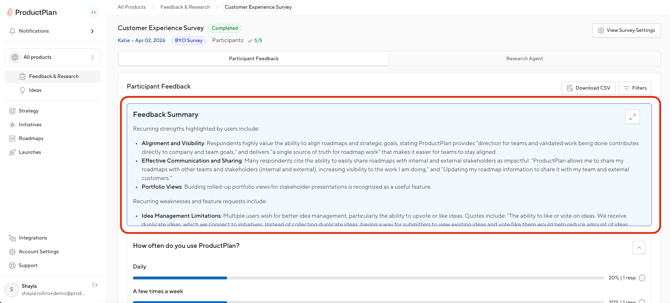
- After your survey is closed, the Feedback Summary will become available.
- Ending a survey early accepts all pending participant responses, closes the survey, and triggers any remaining incentive payments. Responses from Panel surveys or incentivized BYO surveys can no longer be contested after this action.
- A summary panel appears, and the Research Agent is unlocked.
- After your survey is closed, the Feedback Summary will become available.
-
Research Agent
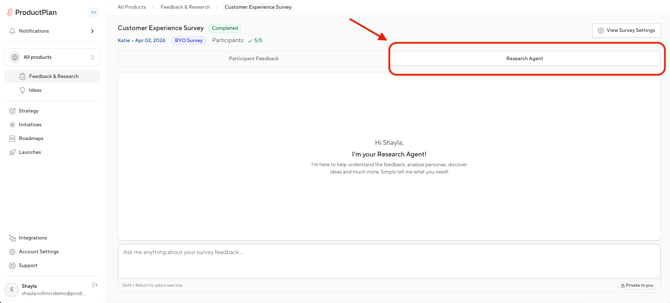
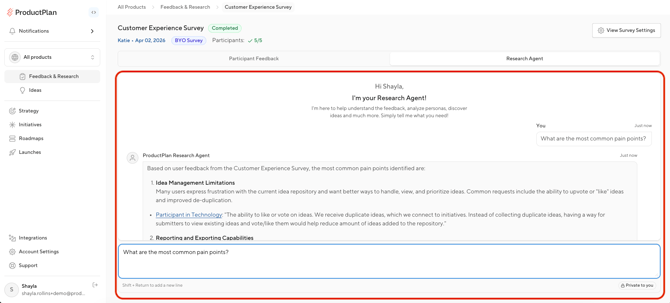
- After the Feedback Analysis has been generated, the Research Agent is unlocked, giving you an AI chat interface for open-ended analysis of your survey data. Editors can engage in private discussions that are not visible to other users on the account.
- Click the Research Agent tab. If it’s not available, be sure you have first generated the AI Research Summary.
- Type a question in the chat input at the bottom and press Enter.
- The AI responds based on your survey data. Continue the conversation with follow-up questions. Example questions:
- "What are the most common pain points?"
- "Summarize what participants said about pricing."
- "Which responses mention the onboarding flow?"
- After the Feedback Analysis has been generated, the Research Agent is unlocked, giving you an AI chat interface for open-ended analysis of your survey data. Editors can engage in private discussions that are not visible to other users on the account.
Participant Experience
Participants receive a survey link and access the survey through a ProductPlan hosted page. They do not need a ProductPlan account to participate.
When starting a survey, participants are first asked to identify who they are. Depending on the audience type (Panel or BYO) recipients may be asked to authenticate using LinkedIn or enter their name and email, respectively.
After submission, their response enters a 72-hour review window. If not acted on within 72 hours, the response is automatically accepted.
Panel Survey Participants
-
If their response is rejected, Panel survey participants will receive email notifications to fix their response.
BYO Survey Participants
-
Participants who participate in an incentivized gift card survey will receive an email to claim their digital gift card via a third-party company, Tremendous, after their response has been accepted.
-
BYO survey participants will receive email notifications to claim their digital gift card and to fix their response (if rejected).
User Permissions
-
Editors have full access to all surveys, including the ability to create and edit.
-
Editors can run the AI feedback analysis and access the research agent.
-
Viewers have read-only access to survey drafts, active surveys, and completed surveys.
-
Viewers cannot create new surveys or edit existing ones.
-
Viewers can see participant feedback on completed surveys and download a CSV export of the response data.
Video
Frequently Asked Questions
Account Setup
Where can I enter in persona information?
This will be available at a later date.
AI + Security
What is your "AI Research Agent" and how is it different from just using ChatGPT, Claude, or other AI tools?
Great question! With any AI tool, the quality of the output is greatly impacted by the quality of the input. ProductPlan's Research Surveys help you capture feedback from real people who match your target customer. Our Research Agent will then review that research and answer any question that you have. All of your information is kept confidential from the AI platforms.
What type of AI model do you use?
We use OpenAI.
Are you sharing my information with AI platforms?
No! ChatGPT and all other platforms allow for control of data sharing. We have our setting set to "Off" on the "Improve the model for everyone" setting. So your information is kept private.
How do you ensure that my data is safe?
Yes, data security is critical for ProductPlan. We are SOC2 and GDPR compliant. Certificates available upon request.
Payment + Billing
How are we billed for ProductPlan Panel Surveys or Incentivized Bring Your Own Audience Surveys?
The editor who launches the survey is billed via the credit card saved on file in their account. This card will be charged for all charges associated to that specific survey, including any changes made by other Editors post-launch.
Surveys
What does “source participants for you” mean?
When you set up a test in ProductPlan, you can set your desired target audience. ProductPlan works with several panel providers to source test participants that match your target persona criteria. All B2B participants are LinkedIn verified and you get their LinkedIn URL to validate it.
How do we know you will find our ideal prospects to test and get feedback from?
Great question. With research, transparency matters! That is why we require LinkedIn authentication for all B2B recruiting. We share the LinkedIn profile of the test participant so that you can verify they match your target audience. We also offer screener questions which allow you to screen out test participants based on needs, behaviors and other criteria.
What if a panel participant doesn’t match the criteria I selected?
Contest the response from the Participant Feedback tab and provide a detailed reason. The participant receives an email to retake the survey. Responses not contested within 72 hours are automatically accepted.
How many test participants are needed for each test?
Since ProductPlan tests are qualitative, rather than quantitative, you will see great results with just 10 responses for specific projects. For larger projects (e.g. discovery or prioritization), 25-50 responses will give you a strong signal. You can set the desired number of participants in each test.
How long does it take ProductPlan to complete a test?
ProductPlan can source 10 participants within 1-3 business days. We can source 50 participants within 7-10 days. It can take longer if the persona is niche. If you are sourcing your own participants, then it depends on how active your email list is.
What does “source your own participants” mean?
You can use ProductPlan to test on your own list of participants. Asking for feedback from your customers is a great way to test prototypes of new features
What type of expertise and support can we expect?
We have set up question templates in the project setup wizard to make test setup fast. You can duplicate studies in the future once you have a test template that you like. Setting up a new test should take less than 10 minutes. ProductPlan was built for the very busy to use.
Do you support user testing style questions where the participant’s screen can be recorded?
Not at this time. Coming soon!