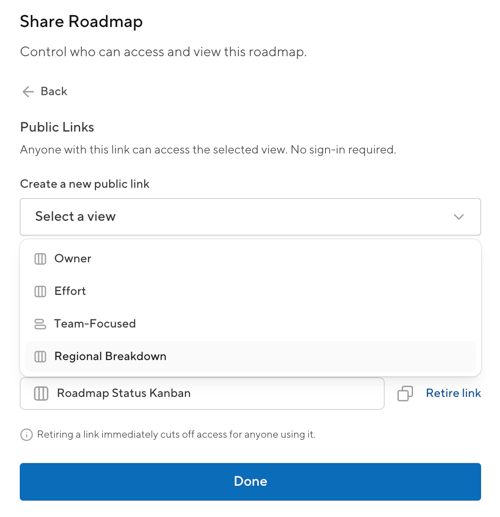
With custom views, you can save alternate timelines and pivot your roadmap to a board style. Once you’ve created a view, you can share it with your team by creating a private link to it.
Custom views come in handy when presenting to stakeholders about your initiatives. They're also beneficial for sharing a more limited view with smaller, specific audiences.
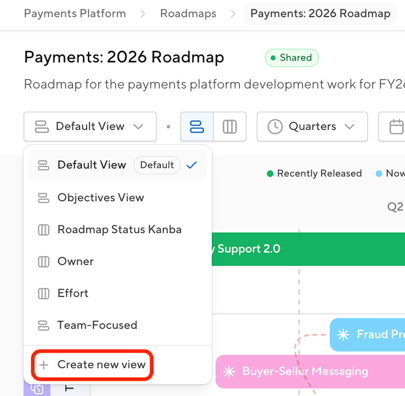
To create a new custom view, select 'Default View' at the top left of your toolbar to open the view dropdown menu, and then click '+ Create New View':
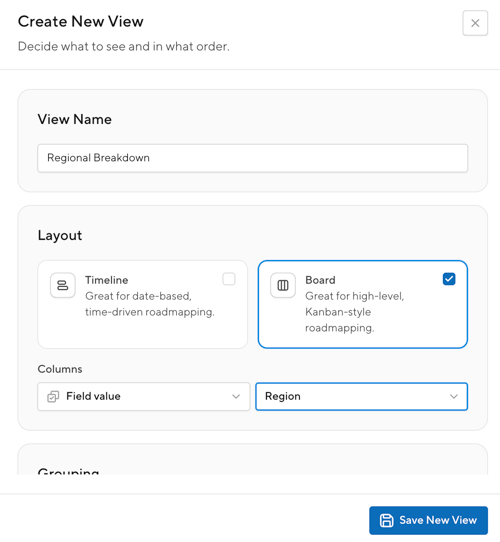
All views need to have a unique title. Select a layout style and adjust the layout settings - which can be different from the original default view!
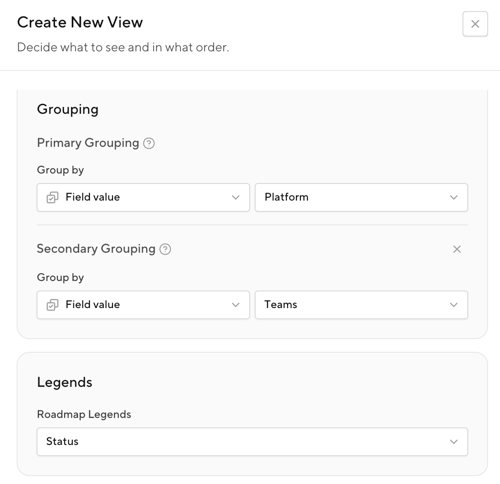
Every custom view has its own settings. Adjustments can be made to the groupings, legend, and level of hierarchy shown. Or, leave as-is to match the default view.
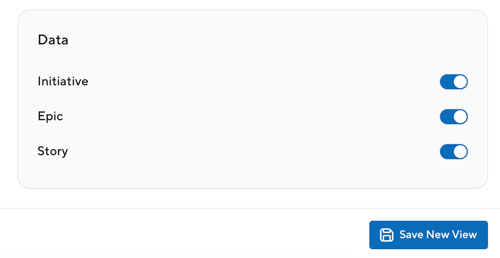
Sharing Custom Views
To give someone access to only a specific view of the roadmap, create a public link for it.
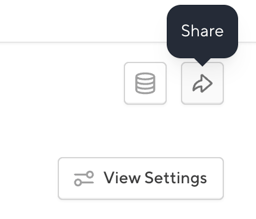
Open up the Share modal (arrow icon in top-right of your roadmap):
Public links have their own section within the Share menu. Click to open up sharing settings for the roadmap's public links:
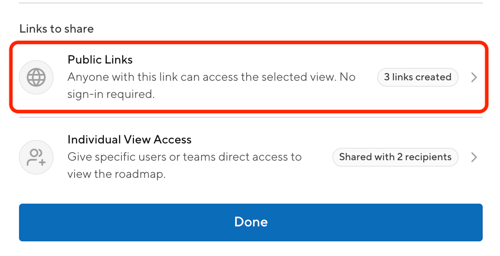
Create a new link by selecting which Custom View the link should be made for. Links can be retired, and become inaccessible, at any time.