
Populating Custom Fields on Initiatives, Epics, and Stories
Custom Field Governance
Account Admins have the ability to standardize the style and structure of their roadmaps by setting up custom fields for their account.
Custom fields can be set up from the Manage Products page, accessed from the navigation menu. Only Account Admins are able to access this page. At this time, custom fields are applied at the account-level, and will be visible on all roadmap initiatives, epics, and stories, across all products.
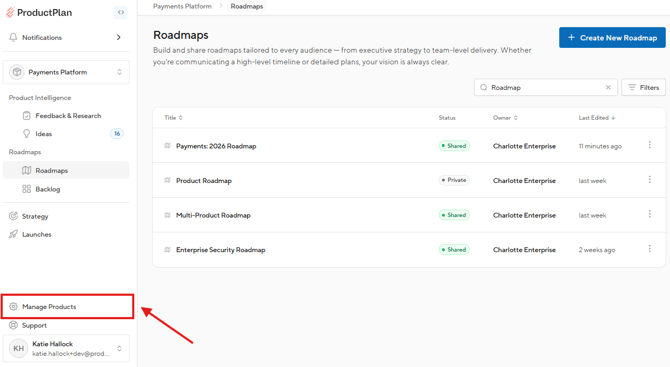
Creating Custom Fields
- Within the Manage Products page, click on the Fields tab.
- The Fields page displays all fields created in your account. ProductPlan-native fields are indicated with "Default" and are not editable.
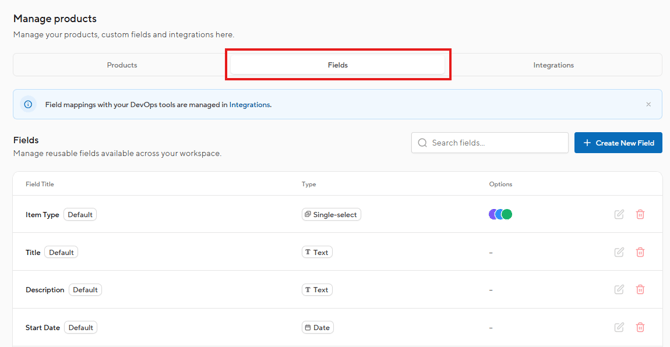
- The Fields page displays all fields created in your account. ProductPlan-native fields are indicated with "Default" and are not editable.
- To create a new field, click the Create New Field button.
- Select the field type. There are five supported field types:
- Text
- Number
- Single-select dropdown
- Multi-select dropdown
- Date
- If selecting text, number, or date: provide the field name, and click Save New Field.
- If selecting single-select or multi-select: provide the field name, set the options for the dropdown list, and click Save New Field.
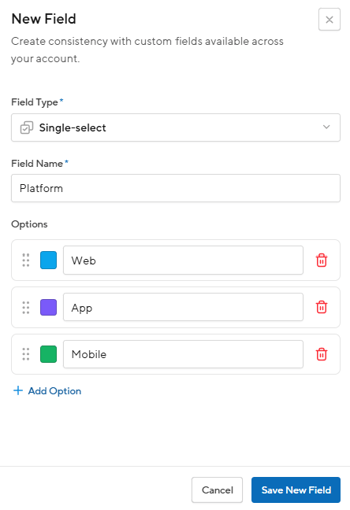
- Once the field is saved, it will be visible in your Fields list, and will be available on all initiatives, epics, and stories for population.
Managing Custom Fields
- To update a custom field, click the Edit button on the right-hand side of the page.
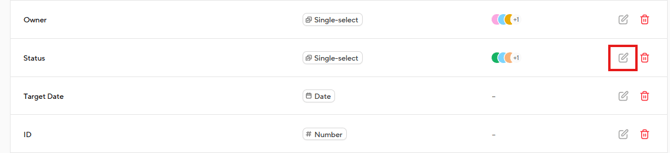
- Update the field as needed, and click Save Changes.
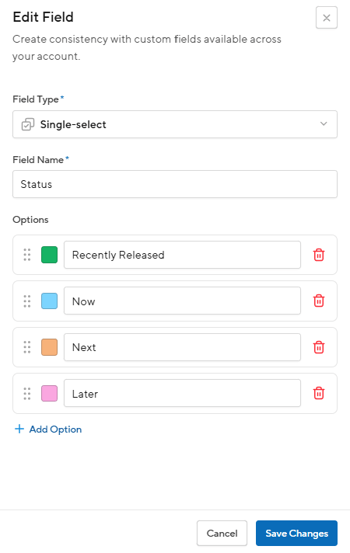
- Note: Any changes you make to the field will automatically reflect in the platform upon saving.
Populating Custom Fields on Initiatives, Epics, and Stories
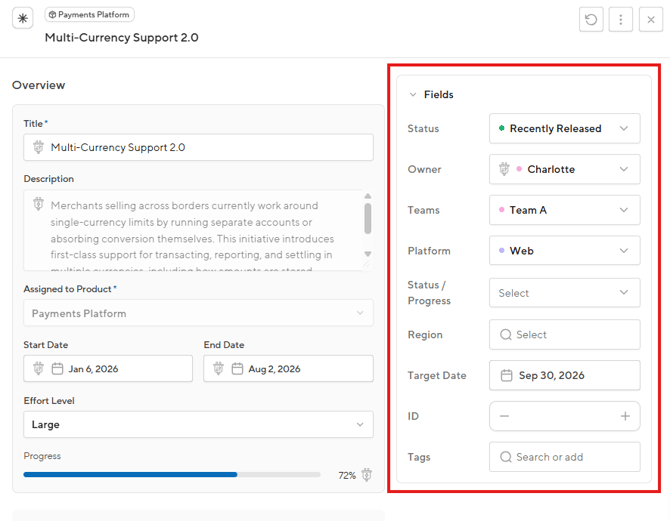
All custom fields created within the account will be visible and available for populating on all initiatives, epics, and stories across the account. Editors can manually update custom fields on initiatives, epics, and stories that are within a product they have edit access to.
- From a roadmap view or the backlog, click on an initiative, epic, or story to open the details drawer. Custom fields are located within the Fields section of the drawer.
- Click into a field to populate it with a value.
- Updates are saved automatically.
Custom fields can also be populated through the Jira Cloud integration. For more information, please visit Setting Up Your Jira Cloud Integration.