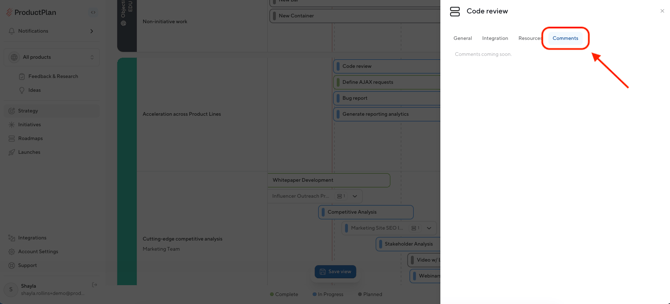
ProductPlan now gives viewers and editors the ability to open any bar or container on a Strategic Portfolio and explore its full details in a side drawer, without being redirected to the roadmap of origin. The drawer surfaces key fields, linked resources, integration connections, and comments in a clean, organized view that matches the depth viewers may need.
The view-only drawer is available on any Strategic Portfolio where you have viewer or editor access. No additional setup is required to use it.
View-Only Drawer
Click any bar or container on the roadmap to open its detail drawer. 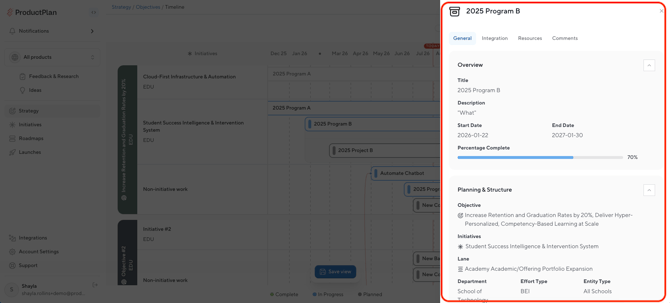
The drawer title reflects the name of the item, and an icon in the top-left corner indicates whether the item is a bar or a container.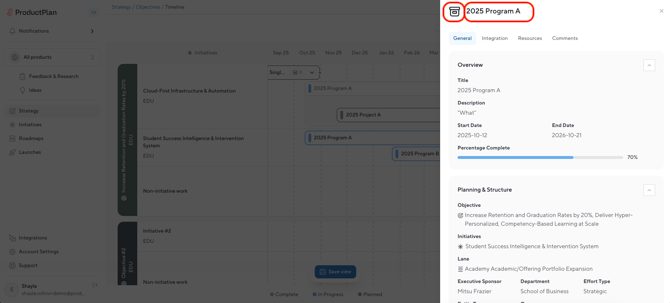
To close the drawer, click the X button or utilize keyboard shortcuts for streamlined accessibility.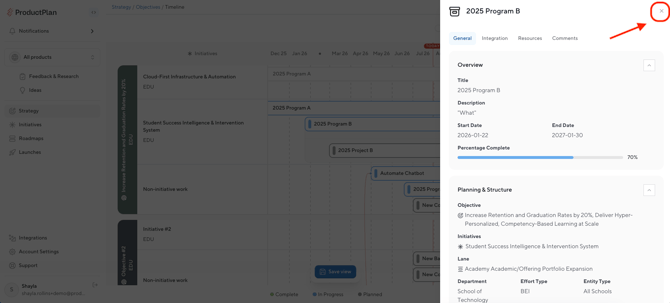
There are four navigable tabs in the drawer: General, Integrations, Resources, Comments.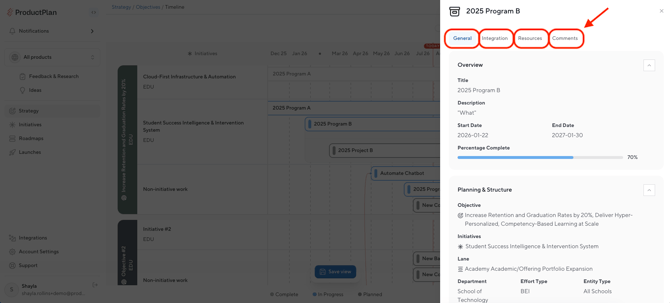
General
The General tab is the default view when the drawer opens.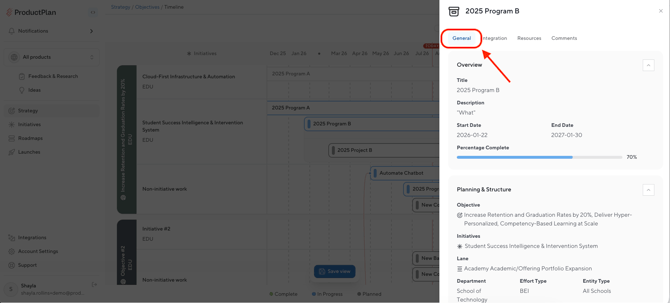
It's organized into these sections:
- Featured Resources: Highlights linked resources selected from the Resources tab for quick stakeholder reference. Hyperlinks are displayed inline for easy access.
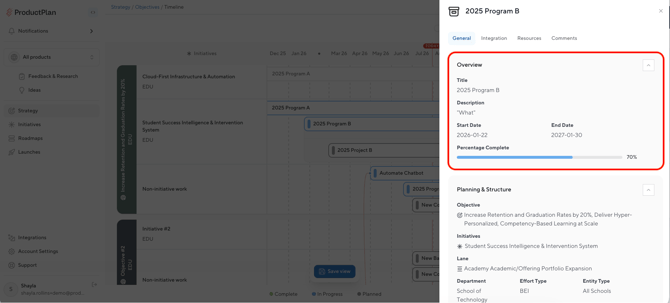
- Overview Section: Displays the following fields when content exists:
- Title
- Description
- Strategic Importance
- Start Date
- End Date
- Percentage Complete (rendered as a progress bar with % value)
- Effort Level
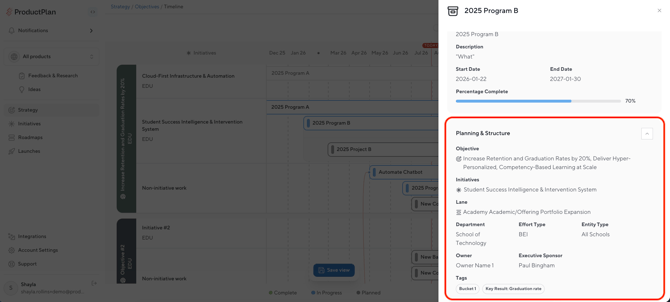
- Planning & Structure Section: Collapsed by default. Expand via the chevron control to view:
- Objective
- Initiative
- Lane
- Single Select Dropdown Field(s)
- Multi Select Dropdown Field(s)
- Open Text Field(s)
- Tag(s)
- Dependencies (Requires / Required By)
- Launch
All sections are collapsible and expandable. All fields are read-only; no inline editing is available from the viewer drawer.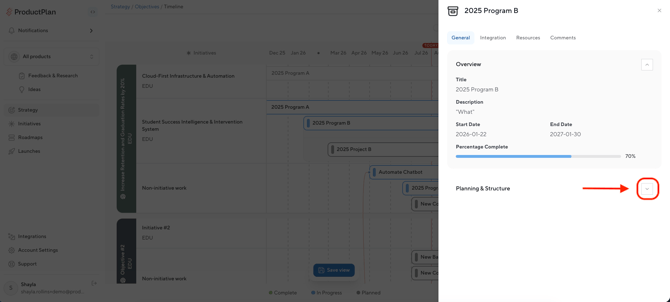
Fields are shown based on roadmap-level field settings. Fields with no content are hidden automatically.
Integrations
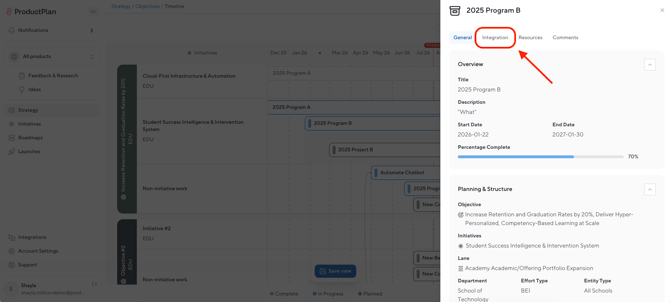
Navigate to the Integrations tab to see any work items linked to this bar or container. Supported integration icons (e.g., Jira, Azure DevOps) are displayed alongside the linked ticket or item.
If no integrations are connected to the item, the tab displays: "This item isn't linked to any integrations."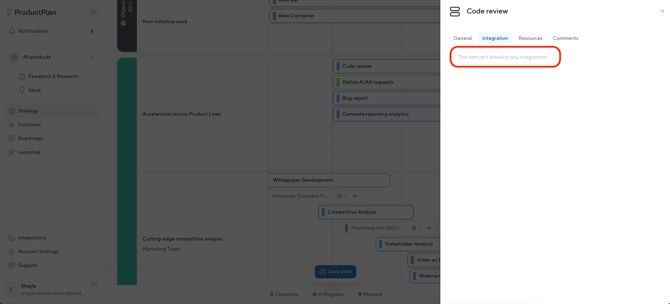
Resources
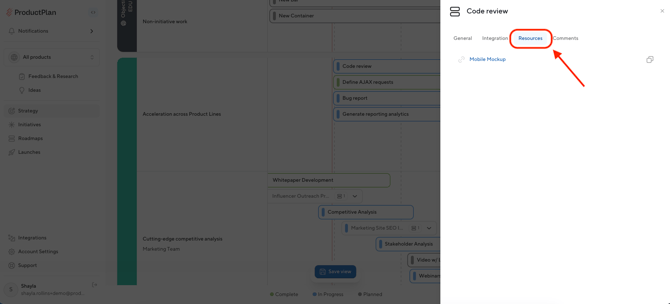
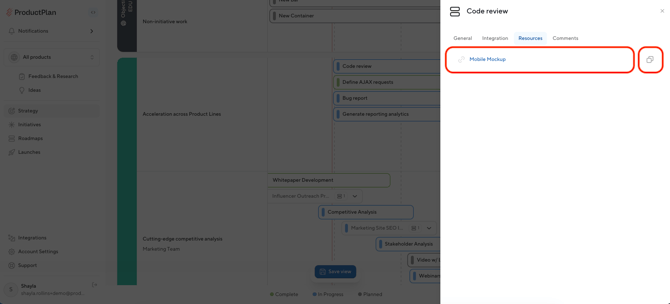
The Resources tab displays all linked resources as a list. Each item includes:
- A hyperlink icon to open the resource directly
- A copy icon to copy the link
Comments
Full comments functionality is not yet available in this release. A message will direct you to view comments on the roadmap itself.