---
title: Sync Custom Fields with Jira
description: ProductPlan allows users to sync Jira fields with ProductPlan single and multi-select custom dropdown fields on roadmap bars and containers.
---
[Skip to content](https://support.productplan.com/sync-custom-fields-with-jira#main-content)
English
Show submenu for translations
[](https://www.productplan.com/)
Open main navigation
Close main navigation
- English
Show submenu for translations
- [https://www.productplan.com/](https://www.productplan.com/)
[https://www.productplan.com/](https://www.productplan.com/)
Find best practices and answers to common questions in ProductPlan
- There are no suggestions because the search field is empty.
1. [Support Center](https://support.productplan.com/?hsLang=en)
2. [\[Legacy\] Roadmapping](https://support.productplan.com/legacy-roadmapping?hsLang=en)
3. [Integrations](https://support.productplan.com/legacy-roadmapping?hsLang=en#integrations)
# Sync Custom Fields with Jira
## ProductPlan allows users to sync Jira fields with ProductPlan single and multi-select custom dropdown fields on roadmap bars and containers.
### **Before You Begin**
This is only applicable for single or multi-select custom dropdown fields on roadmap bars and containers.
To set up the field mappings, you will need:
- A Jira integration connected in ProductPlan
- A ProductPlan single-select or multi-select dropdown custom field created and enabled on a roadmap
- A compatible Jira field (supported default fields or select-list custom fields)
Want to sync a different type of field? Check out our [instructions for syncing Start Date + End Date, Percent Complete, Tags, and Text Fields here](https://support.productplan.com/jira-integration-overview?hsLang=en).
---
### **Getting Started**
1. [Field Mapping](https://support.productplan.com/sync-custom-fields-with-jira#field_mapping)
2. [Field Value Mapping](https://support.productplan.com/sync-custom-fields-with-jira#field_value_mapping)
To begin, go to your integrations page in ProductPlan and select the Jira Software card.
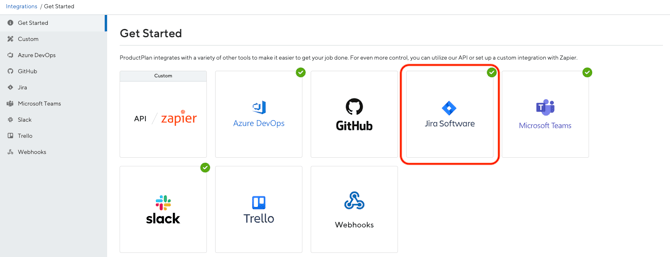
On the [Jira integration settings page](https://app.productplan.com/integrations/jira), you’ll create a mapping row by clicking '+ Add another field':
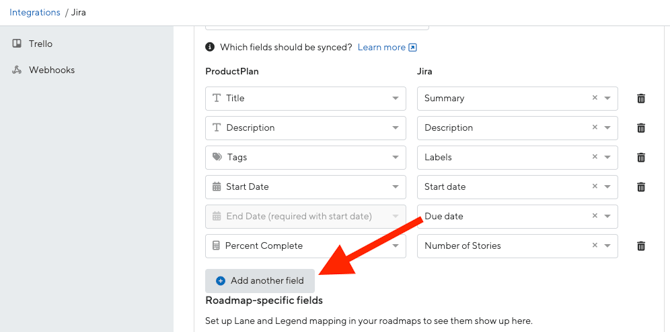
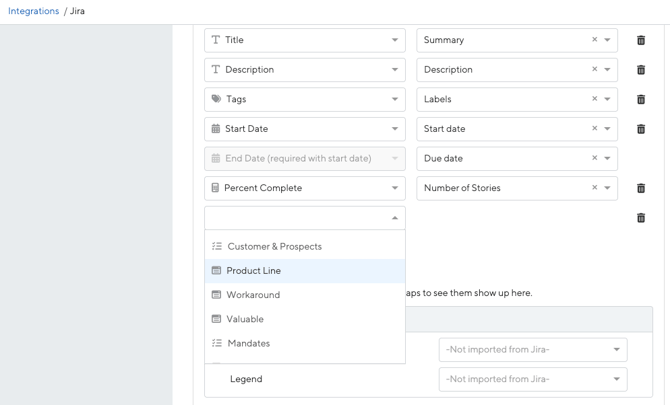
1. Under the “Field mapping” section, in the ProductPlan column, select the single or multi-select custom dropdown field you want to sync.
2. In the corresponding Jira field dropdown, select the Jira field you want to sync from. Only eligible fields will appear and be available to select.
Not seeing the field that you want in the list? Check out our details for [syncing Start Date + End Date, Percent Complete, Tags, and Text Fields here](https://support.productplan.com/jira-integration-overview#Custom).
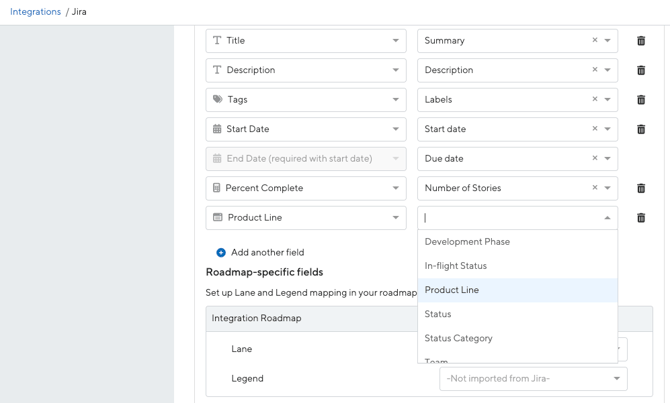
3. Once both fields are selected, you can expand the row to show value mapping.
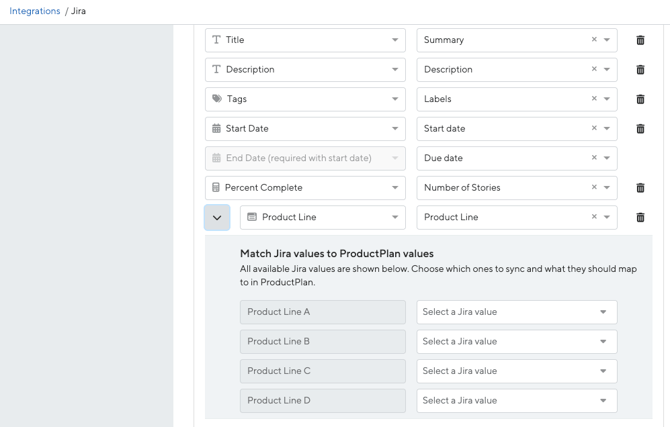
After you select the ProductPlan field and the Jira field, you’ll map the Jira options to the dropdown options in your ProductPlan field. This tells ProductPlan what to set during sync.
1. In the value mapping section, beside each ProductPlan value, select (Jira Cloud) or type in (Jira Data Center) the Jira value you want it to correspond to.\*
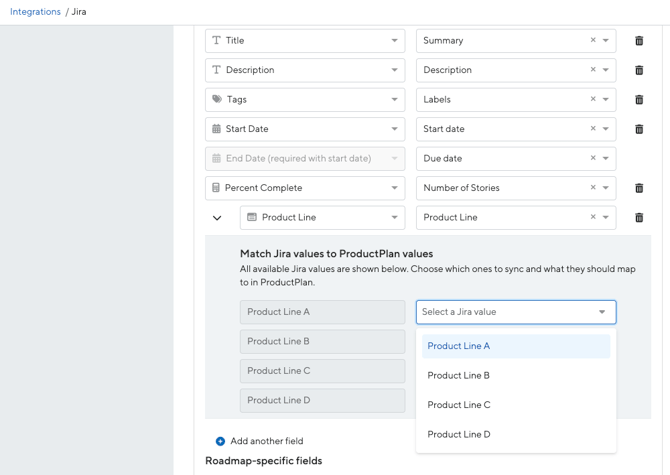
2. Repeat for each Jira option you want included in ProductPlan.
3. You do not need to map every Jira option. Unmapped values will be ignored during sync, as long as at least one value has been mapped to the field.
\*Note: For Jira Data Center, Jira values will not auto-populate as dropdown selections for mapping. You must manually type corresponding values. Best practice is to copy and paste the exact Jira option text to avoid typos and extra spaces.
---
### **Troubleshooting**
#### **Why did my ProductPlan dropdown become blank after sync?**
Most commonly:
- The Jira value is empty.
- The Jira value is one that is not mapped in your field value settings ([see above](https://support.productplan.com/sync-custom-fields-with-jira#field_value_mapping)).
- The field is disconnected due to an unmapped value scenario, like deleting the Jira field or the corresponding field value being deleted from Jira. An error message will be visible inline on the Integrations page and on the bar or container.
#### **Why does my Jira field say, “Unable to load Jira values”?**
Certain Jira field values (ex: Priority) require special permission in order to access the data for custom dropdown field synchronization. To begin mapping these field values with ProductPlan dropdown fields, make sure that you have permission to manage Jira project configurations.
#### **I added a new Jira value, but I do not see it in my dropdown options.**
Run 'Sync now' or wait for the nightly sync, then refresh the Integrations settings page.
#### **Does this overwrite manual changes in ProductPlan?**
Yes. Mapped dropdown fields will follow Jira as the source of truth during sync.
#### **Can I sync custom fields from Jira to other areas of ProductPlan, like Initiatives or Strategy?**
No. This is limited to dropdown custom fields on roadmap bars and roadmap containers.
#### **Can I sync a Jira custom field with a ProductPlan shared legend using these instructions?**
No. Only single or multi-select custom dropdown fields are supported for this specific type of sync.
If you'd like to sync a ProductPlan legend to a Jira custom field, you can configure this as a [Two-Way Field Sync](https://support.productplan.com/two-way-jira-azure-devops-sync#Jira-Lanes-Legend).
#### Video
- [Platform Updates & Events](https://support.productplan.com/platform-updates-events?hsLang=en#main-content)
- [Product Updates](https://support.productplan.com/platform-updates-events?hsLang=en#product-updates)
- [Webinars + Trainings](https://support.productplan.com/platform-updates-events?hsLang=en#webinars-trainings)
- [Product Intelligence](https://support.productplan.com/product-intelligence?hsLang=en#main-content)
- [Products](https://support.productplan.com/product-intelligence?hsLang=en#products)
- [Research Surveys + Feedback Forms](https://support.productplan.com/product-intelligence?hsLang=en#research-surveys-feedback-forms)
- [Ideas + Signals](https://support.productplan.com/product-intelligence?hsLang=en#ideas-signals)
- [Strategy](https://support.productplan.com/strategy?hsLang=en#main-content)
- [Objectives & Key Results](https://support.productplan.com/strategy?hsLang=en#objectives-key-results)
- [Video Guides](https://support.productplan.com/strategy?hsLang=en#video-guides)
- [\[Legacy\] Roadmapping](https://support.productplan.com/legacy-roadmapping?hsLang=en#main-content)
- [Getting Started](https://support.productplan.com/legacy-roadmapping?hsLang=en#getting-started)
- [Integrations](https://support.productplan.com/legacy-roadmapping?hsLang=en#integrations)
- [Standardization](https://support.productplan.com/legacy-roadmapping?hsLang=en#standardization)
- [Roadmap Features](https://support.productplan.com/legacy-roadmapping?hsLang=en#roadmap-features)
- [Strategic Portfolio](https://support.productplan.com/legacy-roadmapping?hsLang=en#strategic-portfolio)
- [Sharing](https://support.productplan.com/legacy-roadmapping?hsLang=en#sharing)
- [Frequently Asked Questions](https://support.productplan.com/legacy-roadmapping?hsLang=en#frequently-asked-questions)
- [Roadmapping](https://support.productplan.com/roadmapping?hsLang=en#main-content)
- [Integrations](https://support.productplan.com/roadmapping?hsLang=en#integrations)
- [Launch](https://support.productplan.com/launch?hsLang=en#main-content)
- [Video Guides](https://support.productplan.com/launch?hsLang=en#video-guides)
- [Initiatives](https://support.productplan.com/initiatives?hsLang=en)
- [Account Setup & Security Settings](https://support.productplan.com/account-setup-security-settings?hsLang=en#main-content)
- [Getting Started](https://support.productplan.com/account-setup-security-settings?hsLang=en#getting-started)
- [Single Sign On](https://support.productplan.com/account-setup-security-settings?hsLang=en#single-sign-on)
- [User Permissions](https://support.productplan.com/account-setup-security-settings?hsLang=en#user-permissions)
- [Notifications](https://support.productplan.com/account-setup-security-settings?hsLang=en#notifications)
- [AI](https://support.productplan.com/account-setup-security-settings?hsLang=en#ai)
- [Licenses + Payment](https://support.productplan.com/account-setup-security-settings?hsLang=en#licenses-payment)
- [Security + Privacy](https://support.productplan.com/account-setup-security-settings?hsLang=en#security-privacy)
- [FAQ](https://support.productplan.com/faq?hsLang=en)
[](https://support.productplan.com/?hsLang=en)
Copyright © 2026, ProductPlan